Mobile video editing has evolved from a novelty into a genuine production powerhouse. In 2026, creators are filming, editing, and publishing directly from their smartphones—sometimes generating millions of views without ever opening a laptop. However, the single biggest frustration for mobile editors is the dreaded watermarkthat many apps stamp onto your exported videos.
A watermark screams "amateur." It distracts viewers, signals that you haven't invested in your craft, and can even hurt your YouTube monetization potential. Whether you're creating YouTube Shorts, Instagram Reels, TikToks, or full-length vlogs entirely on your phone, you deserve clean, professional exports.
In this comprehensive guide, we've tested and ranked12 of the best mobile video editing appsthat let you export without watermarks—completely free or with affordable premium options. Every app has been evaluated on its features, ease of use, export quality, and value for creators in Tier 1 markets like the USA, UK, Canada, and Australia.
Pro Tip
Quick Answer – Best Mobile Video Editing Apps (No Watermark):
1. CapCut– Best overall free editor, no watermark, AI-powered
2.VN Video Editor– Best for advanced mobile editing, 100% free
3.InShot– Best for social media short-form content
4.iMovie– Best for iPhone users, completely free
5.KineMaster – Best for multi-layer professional editing
Why Watermark-Free Editing Matters for Creators
Before diving into the apps, let's understand why exporting without a watermark is non-negotiable for serious content creators:
Brand Professionalism: A third-party watermark on your video signals to viewers (and sponsors) that you're using a free, limited tool. This perception can cost you brand deals worth thousands of dollars.
Monetization Impact: Videos with third-party watermarks may face reduced visibility in recommendation algorithms. YouTube's systems interpret watermarks as lower-quality content, potentially limiting your reach in high-CPM countries.
Platform Compliance: TikTok and Instagram both algorithmically deprioritize videos with visible watermarks from other platforms. Clean exports ensure your content gets maximum distribution.
Viewer Trust: Professional presentation builds credibility. When viewers see a clean, polished video, they're more likely to subscribe, engage, and return for future content.
The 12 Best Mobile Video Editing Apps (No Watermark) in 2026
1. CapCut – Best Overall Free Mobile Editor
Platform:iOS & Android |Price:Free (Pro: $9.99/month) |Watermark: None
CapCut has become the undisputed king of mobile video editing. Developed by ByteDance, it offers a desktop-class feature set on your phone—and every export is watermark-free, even on the completely free tier.
Key Features:
- AI-powered auto-captions in 20+ languages
- Background removal with one tap
- Keyframe animation for professional motion graphics
- Chroma key (green screen) support
- Speed ramping and velocity curves
- Extensive library of trending effects and transitions
- Direct export to YouTube, TikTok, and Instagram
Why Creators Love It: CapCut combines the simplicity of a beginner tool with the depth of a professional editor. The AI captioning alone saves hours of work, and the trending template library keeps your content fresh for YouTube Shorts viral strategies.
Best For: All-around mobile editing, Shorts/Reels, AI-enhanced workflows
Note
CapCut also has a powerful desktop version. For a comparison of desktop AI editors, read our guide on the best AI video editing software for 2026.
---
2. VN Video Editor – Best Free Advanced Editor
Platform:iOS & Android |Price:100% Free |Watermark:None
VN (VlogNow) is the hidden gem of mobile video editing. It iscompletely free with no watermark, no subscription, and no hidden paywalls—everything is unlocked from day one.
Key Features:
- Multi-track timeline (up to 9 video layers)
- Professional curve-based speed control
- LUT import for cinematic color grading
- Keyframe animation on every parameter
- Green screen / chroma key
- Custom aspect ratios for any platform
- 4K 60fps export
Why Creators Love It: VN gives you editing capabilities that rival $20/month subscription apps—for free. The multi-track timeline is rare in a mobile editor and allows complex compositions that would otherwise require a desktop.
Best For: Serious mobile editors, YouTube long-form content, cinematic vlogs
---
3. InShot – Best for Social Media Content
Platform:iOS & Android |Price:Free (Pro: $3.99/month) |Watermark:Removable (free)
InShot is designed specifically for social media creators. While it does add a small watermark on the free tier,you can remove it by watching a short ad—so technically, every export can be watermark-free without paying anything.
Key Features:
- Aspect ratio presets for every platform (9:16, 1:1, 16:9, 4:5)
- Trending music library with commercial licenses
- AI background blur and removal
- Text animations and sticker overlays
- Slow motion and time-lapse
- Direct sharing to all major platforms
Why Creators Love It: InShot is the fastest path from raw footage to polished social media post. Its preset aspect ratios and one-tap exports make it perfect for creators who post across multiple platforms daily.
Best For: Instagram Reels, TikTok, YouTube Shorts, multi-platform creators
---
4. iMovie – Best Free iPhone Editor
Platform:iOS only |Price:100% Free |Watermark: None
Apple's built-in video editor remains one of the most polished free options for iPhone users. It's pre-installed, completely free, and exports clean 4K videos without any watermarks.
Key Features:
- Cinematic mode video support
- Magic Movie and Storyboard templates
- 4K HDR export
- Green screen effects
- Picture-in-picture
- Built-in royalty-free music library
- Seamless integration with Final Cut Pro
Why Creators Love It: If you're an iPhone user, iMovie is the simplest path to professional-looking videos. The templates are specifically designed for storytelling, and the integration with iOS means buttery-smooth performance.
Best For: iPhone users, beginners, vloggers, storytelling content
---
5. KineMaster – Best for Multi-Layer Editing
Platform:iOS & Android |Price:Free (Premium: $4.99/month) |Watermark: Premium removes watermark
KineMaster was one of the first truly professional mobile editors and continues to be a top choice for advanced mobile creators. The free version includes a watermark; the premium tier removes it and unlocks all assets.
Key Features:
- Up to 10 video layers with blending modes
- Professional audio mixing with EQ
- Keyframe animation control
- Chroma key compositing
- Real-time recording over video
- Asset store with effects, stickers, and transitions
- 4K export at 60fps
Why Creators Love It: KineMaster offers the most "desktop-like" editing experience on mobile. The multi-layer compositing with blending modes enables effects that are simply impossible in simpler editors.
Best For: Advanced mobile editing, multi-layer compositions, professional content
---
6. Adobe Premiere Rush – Best for Adobe Ecosystem
Platform:iOS & Android |Price:Free (limited exports), Included with Creative Cloud ($22.99/mo) |Watermark: None
Adobe Premiere Rush bridges the gap between mobile and desktop editing. It's the ideal choice for creators who also use Premiere Pro on desktop, as projects sync seamlessly across devices.
Key Features:
- Cross-device project sync (phone, tablet, desktop)
- Professional color correction tools
- Adobe Stock integration for B-roll
- Auto-ducking audio (music fades under speech)
- Motion graphics templates
- Direct YouTube and social media upload
- Professional titles and animations
Why Creators Love It: The seamless sync between mobile and desktop is unmatched. Start editing on your morning commute, then finish with advanced tools at your desk—all in the same project.
Best For: Adobe users, creators who edit across devices, professional workflows
---
7. PowerDirector – Best AI Features
Platform:iOS & Android |Price:Free (Premium: $5.99/month) |Watermark: Premium removes watermark
CyberLink's PowerDirector brings desktop-grade AI editing features to mobile. The AI tools automate complex tasks like background replacement, object detection, and style transfer.
Key Features:
- AI body tracking and effects
- AI sky replacement
- AI object removal
- Multi-track timeline editing
- 4K export with HDR support
- Stabilization and lens correction
- Extensive stock library
Why Creators Love It: The AI features reduce editing time by up to 70%. Sky replacement and body tracking effects that used to require After Effects can now be done on your phone in seconds.
Best For: AI-enhanced edits, creators who want automated assistance, advanced effects
---
8. FilmoraGo – Best Beginner-Friendly Option
Platform:iOS & Android |Price:Free (Pro: $7.99/month) |Watermark: Premium removes watermark
FilmoraGo is the mobile version of the popular Wondershare Filmora desktop editor. It's designed to make video editing accessible to complete beginners while still offering enough depth for intermediate creators.
Key Features:
- One-tap video templates
- AI copywriting for captions (integrated)
- Speed ramping presets
- Text-to-speech narration
- Trending music and sound effects
- Social media optimization presets
- Cross-platform editing with Filmora desktop
Why Creators Love It: The template system is the fastest way to create professional-looking content. For creators running faceless YouTube channels, FilmoraGo's templates and text-to-speech make production incredibly efficient.
Best For: Beginners, faceless channels, template-based editing
---
9. VLLO (Video Editor) – Best for Clean Interface
Platform:iOS & Android |Price:Free (Premium: $4.99/month) |Watermark:None on free tier
VLLO is a Korean-developed editor that's gained massive popularity for its clean, intuitive interface andwatermark-free exports on the free tier. It strikes an excellent balance between simplicity and power.
Key Features:
- No watermark even on free tier
- 100+ free text animations
- PIP (picture-in-picture) support
- Mosaic/blur for face masking
- Keyframe animations
- Background music library
- Split-screen layouts
Why Creators Love It: VLLO offers the rare combination of no watermark, no ads on export, and genuinely useful features on the free tier. It's particularly popular for creators who value a clean, distraction-free editing experience.
Best For: Minimalist editors, privacy-conscious creators, clean exports
---
10. GoPro Quik – Best for Action Content
Platform:iOS & Android |Price:Free (Quik Subscription: $1.99/month) |Watermark: None
GoPro Quik isn't just for GoPro footage—it works with any video on your phone. Its AI-powered auto-edit feature can turn raw footage into a polished video in seconds.
Key Features:
- AI auto-edit (creates edits automatically from your footage)
- Beat sync (cuts align with music automatically)
- Speed ramping (smooth slow-motion transitions)
- Horizon leveling
- Cloud backup for projects
- High-quality filters optimized for outdoor content
Why Creators Love It: The auto-edit AI is genuinely impressive. Import 10 clips, choose a song, and Quik will create a professional-looking edit with perfectly timed cuts, transitions, and effects—all in under 30 seconds.
Best For: Action sports, travel vlogs, fast-turnaround edits
---
11. Canva Video Editor – Best for Graphics-Heavy Content
Platform:iOS & Android (Web) |Price:Free (Pro: $12.99/month) |Watermark: None
Canva has expanded far beyond static graphics into a capable video editor. It's the best choice for creators who need polished graphics, animated text, and branded templates.
Key Features:
- 10,000+ video templates
- Brand kit integration (colors, fonts, logos)
- Animated text and graphics
- Stock video and music library
- Real-time collaboration
- Direct publish to social platforms
- Thumbnail design capabilities built-in
Why Creators Love It: Canva bridges the gap between video editing and graphic design. If your content relies heavily on text overlays, branded elements, and visual storytelling, Canva's integrated approach saves enormous time.
Best For: Educational content, presentations, brand-focused creators
---
12. CapCut Commerce Pro – Best for E-Commerce Creators
Platform:iOS & Android (Web) |Price:Free for business use |Watermark: None
CapCut's business-focused version is designed specifically for product videos, ads, and e-commerce content. It includes AI tools that generate product videos from a single URL.
Key Features:
- AI product video generation
- URL-to-video (paste product link, get video)
- Batch video creation
- Performance analytics for ads
- Platform-optimized templates (TikTok Shop, Instagram Shopping)
- Automated A/B testing for ad creatives
Why Creators Love It: E-commerce creators and affiliate marketers can generate dozens of product videos per day using AI automation. The batch processing capability is unmatched for high-volume content production.
Best For:E-commerce creators, affiliate marketers, product reviewers
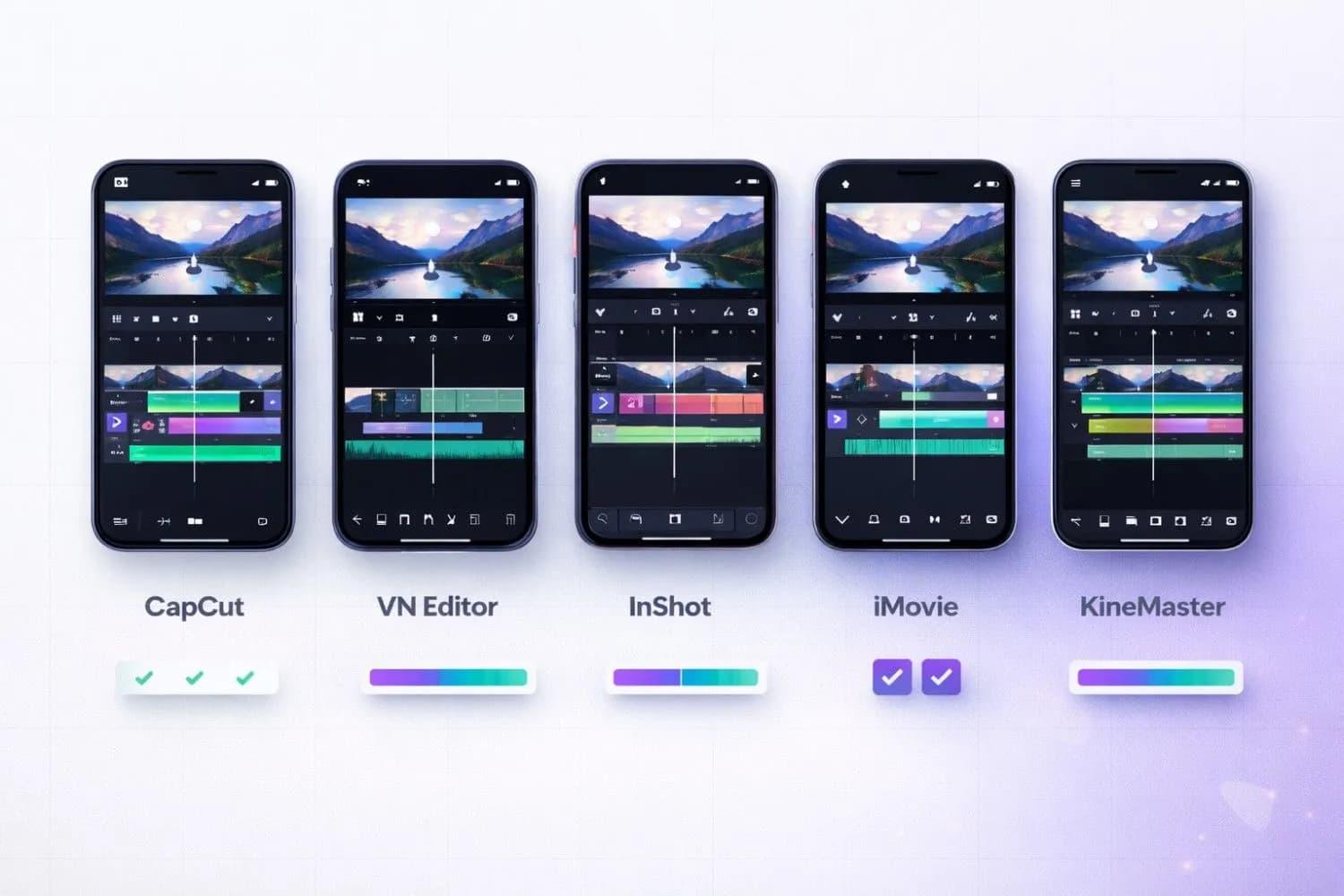
Mobile Video Editing Apps Comparison 2026
Complete Comparison: Mobile Video Editing Apps at a Glance
| App | Free? | Watermark | 4K Export | AI Tools | Multi-Track | Best For |
|---|---|---|---|---|---|---|
| CapCut | ✅ | None | ✅ | ✅✅✅ | ✅ | Overall best |
| VN Editor | ✅ | None | ✅ | ❌ | ✅ (9 layers) | Advanced free editing |
| InShot | ✅ | Removable (ad) | ✅ | ✅ | ❌ | Social media |
| iMovie | ✅ | None | ✅ | ❌ | ❌ | iPhone users |
| KineMaster | Freemium | Premium only | ✅ | ✅ | ✅ (10 layers) | Multi-layer editing |
| Premiere Rush | Freemium | None | ✅ | ✅ | ✅ | Adobe ecosystem |
| PowerDirector | Freemium | Premium only | ✅ | ✅✅✅ | ✅ | AI features |
| FilmoraGo | Freemium | Premium only | ✅ | ✅ | ❌ | Beginners |
| VLLO | ✅ | None | ✅ | ❌ | ❌ | Clean interface |
| Quik | ✅ | None | ✅ | ✅✅ | ❌ | Action content |
| Canva Video | ✅ | None | ❌ | ✅ | ❌ | Graphics-heavy |
| CapCut Commerce | ✅ | None | ✅ | ✅✅✅ | ✅ | E-commerce |
How to Choose the Right Mobile Video Editor
Selecting the right mobile video editing app depends on your specific needs, content type, and skill level. Here's a decision framework:
By Content Type
YouTube Long-Form Videos:
Use VN Video Editor or KineMaster. Both offer multi-track editing, color grading, and the depth needed for 10+ minute videos. Pair your edited video with optimized metadata using our YouTube Description Generator and Tag Generator for maximum discoverability.
YouTube Shorts & Reels:
CapCut or InShot are your best options. Both include vertical video templates, trending effects, and fast export workflows designed for short-form content. Check our guide on YouTube Shorts strategy to maximize your Shorts performance.
Faceless Channel Content:
FilmoraGo or Canva Video pair excellently with faceless YouTube channel strategies. Their template libraries and text-to-speech features make producing high-volume content possible without showing your face.
By Skill Level
| Skill Level | Recommended App | Why |
|---|---|---|
| Complete Beginner | iMovie / CapCut | Intuitive, minimal learning curve |
| Intermediate | InShot / FilmoraGo | Balance of ease and features |
| Advanced | VN Editor / KineMaster | Desktop-class control |
| Professional | Premiere Rush / PowerDirector | Cross-device, AI-powered |
By Budget
-$0 (100% Free, No Watermark):CapCut, VN Video Editor, iMovie, VLLO, Quik
-Under $5/month:InShot Pro, KineMaster Premium, VLLO Premium
-$5–10/month:PowerDirector, FilmoraGo Pro
-$10+/month:Adobe Premiere Rush, Canva Pro
Mobile Video Editing Tips for Maximum Quality
Getting the most from your mobile video editing app requires understanding a few key optimization techniques:
Filming Settings Matter
Before you edit, make sure you're capturing the best possible footage:
-Resolution:Film in 4K when possible, even if you export at 1080p. The extra resolution allows you to crop and reframe without quality loss.
-Frame Rate:Use 30fps for standard content, 60fps for action or slow-motion segments.
-Stabilization:Enable your phone's built-in stabilization, and use the editor's stabilization tool on top of that for smooth, professional footage.
-Audio:Consider a clip-on lavalier microphone ($15-$30). Clean audio is the single biggest quality upgrade you can make.
Export Settings for Each Platform
| Platform | Resolution | Aspect Ratio | Frame Rate | Bitrate |
|---|---|---|---|---|
| YouTube (Long) | 1080p or 4K | 16:9 | 30fps | Max |
| YouTube Shorts | 1080x1920 | 9:16 | 30fps | Max |
| Instagram Reels | 1080x1920 | 9:16 | 30fps | High |
| TikTok | 1080x1920 | 9:16 | 30fps | High |
| Twitter/X | 1280x720 | 16:9 | 30fps | Medium |
After Editing: Optimize for Discovery
Your edit is only half the battle. After exporting your professionally edited, watermark-free video, make sure to optimize for maximum reach:
1.Create a compelling thumbnail– Use our AI Thumbnail Generator to create high-CTR cover images
2.Write an SEO-optimized title– Our YouTube Title Generator creates click-worthy titles backed by data
3.Optimize your description– Use the YouTube Description Generator for keyword-rich descriptions
4.Generate trending hashtags– Our Hashtag Generator finds the best tags for your content
5.Post at the right time– Consult our guide on the best time to upload to YouTube for maximum first-hour engagement
Important
The No-Watermark Rule:Never publish content with a third-party watermark if you plan to monetize. YouTube's algorithm may reduce impressions for videos with visible watermarks, and sponsors specifically avoid channels that appear unprofessional. Always use a watermark-free editor or pay for the premium tier to remove it.
Mobile vs Desktop Video Editing in 2026: The Great Debate
The gap between mobile and desktop video editing has narrowed dramatically. Here's an honest comparison:
| Factor | Mobile Editing | Desktop Editing |
|---|---|---|
| Convenience | ✅ Edit anywhere | ❌ Desk required |
| Speed | ✅ Faster for simple edits | ❌ Slower setup |
| Processing Power | ❌ Limited by phone hardware | ✅ GPU acceleration |
| Color Grading | ⚠️ Basic to intermediate | ✅ Hollywood-grade |
| Multi-Track | ⚠️ 2-10 layers typical | ✅ Unlimited |
| Audio Mixing | ❌ Basic controls | ✅ Professional DAW-level |
| File Management | ❌ Phone storage limits | ✅ Unlimited storage |
Our Recommendation:Use mobile editing for YouTube Shorts, Instagram Reels, TikToks, and quick-turnaround vlogs. Switch to desktop for long-form videos (10+ minutes), complex multi-camera edits, and content requiring advanced color grading. For desktop options, check our guide on the best AI video editing software.
Advanced Mobile Editing Workflows
The "Shoot-Edit-Post" One-Hour Workflow
Professional mobile creators have perfected the rapid content pipeline:
1.Film(20 min) – Capture footage using your phone's native camera app at 4K/30fps
2.Import & Rough Cut(15 min) – Drop clips into CapCut or VN, trim to essential moments
3.Enhancements(15 min) – Add captions, transitions, color correction, and music
4.Export & Optimize(10 min) – Export at maximum quality, then use YouTube Tools Hub to optimize your title, description, tags, and thumbnail
This workflow allows creators to publish daily content—a critical strategy for growing channels quickly, as detailed in our YouTube algorithm guide.
AI-Accelerated Mobile Editing
In 2026, AI features have transformed mobile editing speed:
-Auto-Captions:CapCut and PowerDirector generate accurate captions in seconds, saving 30+ minutes per video
-Background Removal:One-tap AI removes backgrounds without a green screen
-Beat Sync:Quik and CapCut automatically cut footage to match music beats
-Auto-Reframe: AI detects subjects and auto-crops 16:9 footage to 9:16 for Shorts and Reels
These AI features mean a single creator with a smartphone can produce content that previously required a team of editors.
Conclusion: The Best Mobile Video Editor Is the One You Master
Every mobile video editing app on this list is capable of producing professional, watermark-free content in 2026. The "best" app isn't the one with the most features—it's the one that fits your workflow and helps you publish consistently.
Our Top Picks:
- Best Overall Free:CapCut (unbeatable combination of AI features, no watermark, and ease of use)
-Best Advanced Free:VN Video Editor (desktop-class timeline with zero cost and zero watermark)
-Best for iPhone:iMovie (seamless integration, polished output, completely free)
-Best for Social Media:InShot (fastest path from footage to published post)
-Best for Professionals:KineMaster or Premiere Rush (multi-layer editing with professional tools)
No matter which app you choose, remember thatcontent quality and strategy matter more than your editing tool. A well-planned video with basic edits will always outperform a perfectly edited video about a topic nobody is searching for. Use our YouTube Video Ideas Generator to find high-demand topics, then leverage your chosen mobile editor to bring them to life—clean, professional, and completely watermark-free.
Ready to start editing? Download your chosen app, film your first clip, and use our complete suite of free YouTube tools to optimize every element of your video for maximum reach and revenue.
Topics
❓Frequently Asked Questions
What is the best free mobile video editing app with no watermark?
CapCut is the best free mobile video editing app with no watermark in 2026. It offers AI-powered features including auto-captions, background removal, keyframe animation, and a massive library of trending effects and transitions—all completely free with no watermark on exports. VN Video Editor is an excellent alternative, offering multi-track editing with up to 9 video layers and 4K 60fps export, also completely free with no watermark.
Can I edit professional YouTube videos on my phone?
Yes, you can edit professional YouTube videos entirely on your phone in 2026. Apps like VN Video Editor and KineMaster offer multi-track timelines, color grading, keyframe animation, and 4K export—features that rival desktop editors. Many successful YouTubers with millions of subscribers edit exclusively on mobile devices. The key is choosing the right app for your content type and mastering its workflow.
Is CapCut really free with no watermark?
Yes, CapCut is genuinely free with no watermark on all exports. The free tier includes AI captions, background removal, keyframe animation, green screen, and advanced editing features. CapCut Pro ($9.99/month) adds additional AI tools, premium effects, and cloud storage, but the free version is more than sufficient for most YouTube creators.
Which mobile video editing app is best for YouTube Shorts?
CapCut is the best mobile video editing app for YouTube Shorts. Its vertical video templates, trending effects, AI-powered auto-captions, and one-tap export to YouTube make it the fastest path from raw footage to published Short. InShot is an excellent alternative with preset aspect ratios for every platform and a trending music library with commercial licenses.
What is the best video editing app for Android with no watermark?
For Android, the top video editing apps with no watermark are CapCut (best overall with AI features), VN Video Editor (best for advanced editing with multi-track timeline), and VLLO (best for a clean, simple interface). All three export in high quality without any watermarks on the free tier, require no subscription, and support 4K video export.
How do I remove watermarks from video editing apps?
The best approach is to use an app that doesn't add watermarks in the first place—CapCut, VN Video Editor, iMovie, VLLO, and GoPro Quik all export watermark-free. For apps like InShot, you can remove the watermark by watching a short ad for each export. For premium apps like KineMaster and PowerDirector, upgrading to the paid tier removes the watermark. Never use third-party watermark removal tools, as they typically degrade video quality.
Can I edit 4K videos on my phone?
Yes, most modern smartphones (iPhone 13+ and Android flagships from 2023+) can edit 4K video smoothly. CapCut, VN Video Editor, KineMaster, and PowerDirector all support 4K editing and export on mobile. For the best 4K editing performance, ensure your phone has at least 6GB RAM and sufficient storage space. Using proxy editing in VN or KineMaster can improve performance on mid-range phones.
What is the best mobile video editor for beginners?
For beginners, iMovie (iPhone) and CapCut (Android/iPhone) are the best starting points. iMovie offers a clean, intuitive interface with guided templates, while CapCut provides AI features that automate complex tasks like captioning and background removal. Both are completely free with no watermarks. FilmoraGo is another beginner-friendly option with one-tap templates, though it requires premium for watermark-free exports.
Is mobile video editing good enough for YouTube monetization?
Absolutely. YouTube's Partner Program has no requirements about which editing tools you use. Many monetized channels with 100,000+ subscribers edit exclusively on mobile. The quality of your content, storytelling, and optimization matter far more than your editing software. Use a watermark-free editor (CapCut, VN, iMovie) and pair it with proper SEO optimization to maximize your monetization potential.
CapCut vs InShot: which is better for mobile video editing?
CapCut is better overall with more features, AI tools (auto-captions, background removal), keyframe control, and no watermark on the free tier. InShot is better for quick social media edits with its preset aspect ratios and simpler interface. CapCut excels at YouTube, TikTok, and advanced editing, while InShot is faster for basic cuts and posts across Instagram, Twitter, and Facebook. For most creators, CapCut is the recommended choice.
Free tools for this topic
Apply what you just read with free creator tools — no signup required.