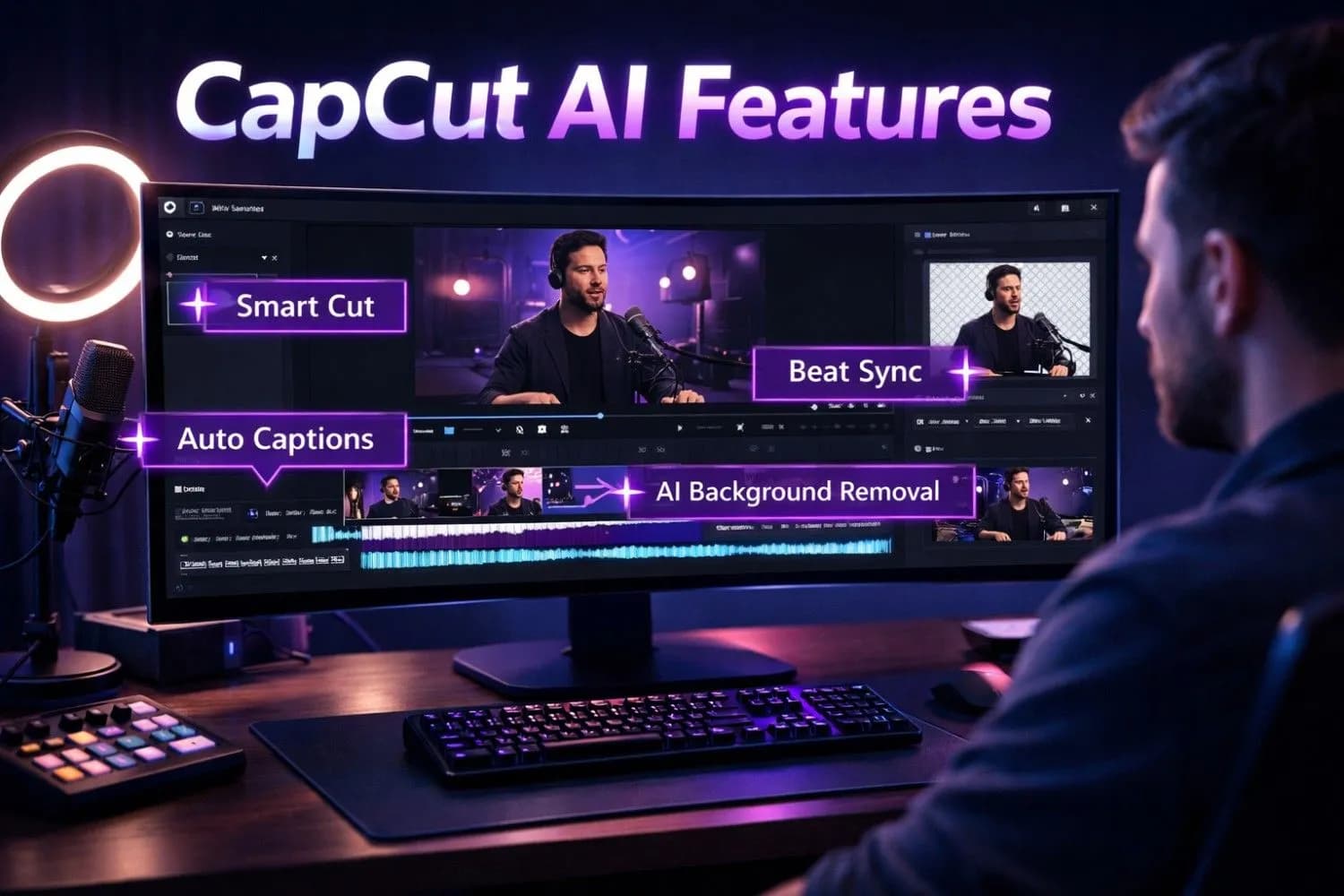
CapCut has evolved from a simple mobile editing app into one of the most powerful AI-driven video editing platforms available to YouTube creators in 2026. With over 200 million active users globally and a feature set that rivals professional desktop software, CapCut's AI capabilities are transforming how creators produce content — faster, smarter, and at zero cost.
Whether you're editing YouTube Shorts, long-form tutorials, vlogs, or faceless automation videos, understanding CapCut's full AI feature suite can cut your editing time by 60–80% while dramatically improving production quality. This comprehensive guide covers every major CapCut AI feature, how to use it effectively, and how to integrate it into a professional YouTube workflow.
Pro Tip
Quick Answer — Top CapCut AI Features for YouTube:
1. AI Background Removal— Remove backgrounds without a green screen
2.Auto Captions— Generate accurate subtitles in seconds
3.Smart Cut— Auto-remove silences and filler words
4.Beat Sync— Auto-align cuts to music beats
5.AI Voice Changer— Transform your voice with AI
6.Text to Speech— Generate natural voiceovers instantly
7.Auto Reframe— Resize videos for any platform automatically
Why CapCut AI Features Matter for YouTube Creators in 2026
The YouTube creator economy is more competitive than ever. With 500+ hours of video uploaded every minute, production quality is no longer optional — it's the baseline. The problem? Professional editing software like Adobe Premiere Pro costs $55+/month, and learning curves can take months.
CapCut solves this by packaging professional-grade AI tools into a free, intuitive interface available on desktop, mobile (iOS and Android), and web browser. For creators focused on growing their YouTube channel, CapCut's AI features provide an asymmetric advantage: professional output at zero cost.
Important
The AI Editing Advantage:Creators using AI-assisted editing tools report producing videos 3x faster than traditional editing workflows. For YouTube's algorithm, faster production means more consistent uploads — and consistency is one of the strongest signals for channel growth.
CapCut vs. Traditional Editing Software
| Feature | CapCut (Free) | Adobe Premiere Pro | DaVinci Resolve |
|---|---|---|---|
| Price | Free | $55/month | Free (basic) |
| AI Background Removal | ✅ Instant | ❌ Manual | ✅ Limited |
| Auto Captions | ✅ 50+ languages | ✅ (paid add-on) | ✅ Limited |
| Smart Cut (silence removal) | ✅ One-click | ❌ Manual | ❌ Manual |
| Beat Sync | ✅ Automatic | ❌ Manual | ❌ Manual |
| Mobile App | ✅ Full-featured | ❌ Limited | ❌ Limited |
| Learning Curve | Low | Very High | High |
---
CapCut AI Feature #1: AI Background Removal
What it does: Automatically detects and removes the background from any video clip — no green screen required.
Why it matters for YouTube:Background removal allows creators to place themselves in any environment, create professional talking-head videos from home, and produce polished content without expensive studio setups.
How to Use AI Background Removal in CapCut
- Import your video clip into the CapCut timeline
- Select the clip and tap"Remove BG"in the toolbar
- Choose"Auto Removal"— CapCut's AI processes the clip in seconds
- Fine-tune edges using the"Refine Edge" brush if needed
- Add a new background (solid color, image, or video)
Pro Tips:
- Wear clothing that contrasts with your background for cleaner AI detection
- Ensure even lighting — shadows confuse the AI model
- Use the "Hair Detail" toggle for better results with complex hair
- For best results, shoot against a plain wall even if you plan to remove it
Note
CapCut's AI background removal works on both the mobile app and desktop version. The desktop version offers higher precision edge detection, making it ideal for professional YouTube thumbnails and video overlays.
YouTube Use Cases:
- Faceless channel overlays (place yourself over screen recordings)
- Green screen effect without actual green screen
- Product review videos with clean backgrounds
- Tutorial videos with dynamic background changes
---
CapCut AI Feature #2: Auto Captions (AI Subtitles)
What it does: Automatically transcribes your video audio and generates synchronized subtitles in 50+ languages.
Why it matters for YouTube:Captions increase watch time by 12% on average (YouTube internal data). They make content accessible to deaf and hard-of-hearing viewers, improve SEO through text indexing, and are essential for viewers watching without sound (85% of social media videos are watched on mute).
How to Use Auto Captions in CapCut
- Open your project and tap"Text"→"Auto Captions"
- Select your video's spoken language
- Tap "Start" — CapCut transcribes your audio using AI
- Review and edit any errors in the caption editor
- Customize font, size, color, and animation style
- Export with captions burned in or as a separate SRT file
Caption Styling for YouTube:
- Use high-contrast colors (white text with black outline)
- Keep font size large enough for mobile viewing
- Position captions in the lower third, avoiding YouTube's UI elements
- Use animated captions (word-by-word pop-in) for Shorts to boost retention
Pro Tip
AEO Insight: Auto captions make your video content indexable by search engines. YouTube's algorithm reads caption text to understand video topics — accurate captions directly improve your YouTube SEO and search ranking.
Supported Languages: English, Spanish, French, German, Portuguese, Japanese, Korean, Hindi, Arabic, and 40+ more — making CapCut ideal for creators targeting Tier 1 markets globally.
---
CapCut AI Feature #3: Smart Cut (AI Silence Removal)
What it does: Automatically detects and removes silences, filler words ("um," "uh," "like"), and dead air from your video.
Why it matters for YouTube:Pacing is critical for watch time. Every second of dead air is a potential drop-off point. Smart Cut can reduce a 20-minute raw recording to a tight 12-minute video automatically, improving average view duration — the most important metric for getting more YouTube views.
How to Use Smart Cut in CapCut
- Import your raw footage
- Select the clip and go to"Edit"→"Smart Cut"
- Set your silence threshold (recommended: 0.5–1.0 seconds)
- Preview the suggested cuts before applying
- Manually restore any cuts that removed important pauses
- Apply and export
Advanced Smart Cut Settings:
- Silence Threshold:Lower = more aggressive cutting (start at 0.8s)
-Filler Word Detection:Toggle on to remove "um," "uh," "like" automatically
-Minimum Clip Length:Set to 0.3s to prevent jarring micro-cuts
-Preview Mode: Always preview before applying to catch errors
Warning
Smart Cut can occasionally remove intentional dramatic pauses. Always preview cuts before applying, especially for emotional or storytelling content where pacing is deliberate.
---
CapCut AI Feature #4: Beat Sync (Auto Music Sync)
What it does: Analyzes your background music's beat pattern and automatically aligns video cuts to the rhythm.
Why it matters for YouTube:Beat-synced editing creates a professional, cinematic feel that dramatically increases viewer engagement. Videos with music-synced cuts consistently outperform static edits in watch time and shares — especially for travel vlogs, montages, and YouTube Shorts.
How to Use Beat Sync in CapCut
- Add background music to your timeline
- Select all video clips you want to sync
- Tap"Beat Sync"in the toolbar
- Choose sync intensity:Light,Medium, orStrong
- CapCut automatically repositions cuts to align with beats
- Fine-tune individual cuts manually if needed
Beat Sync Strategies for YouTube:
- Use for highlight reels, travel vlogs, and product showcases
- Combine with zoom effects on beat hits for cinematic impact
- Use "Strong" sync for high-energy content (gaming, sports)
- Use "Light" sync for documentary-style content
---
CapCut AI Feature #5: AI Voice Changer
What it does: Transforms your recorded voice into different AI-generated voice styles in real time.
Why it matters for YouTube:Voice changers enable faceless channel creators to maintain anonymity while delivering engaging audio. They're also used for character voices in gaming content, comedic effects, and creating unique brand voices.
Available Voice Styles in CapCut
| Voice Style | Best For |
|---|---|
| Deep Male | Authority content, documentaries |
| Female Voice | Lifestyle, beauty, tutorial content |
| Robot/Cyborg | Tech, sci-fi, gaming content |
| Chipmunk | Comedy, kids content |
| Echo/Reverb | Music, cinematic content |
| Custom Pitch | Fine-tuned voice adjustment |
How to Use AI Voice Changer
- Record or import your audio/video
- Select the audio track →"Voice Effects"→"AI Voice Changer"
- Choose your desired voice style
- Adjust intensity slider (0–100%)
- Preview and apply
Note
For faceless YouTube channels, combine the AI Voice Changer with Text to Speech (below) for a fully automated voiceover workflow. This is particularly effective for YouTube automation channels targeting high-CPC niches.
---
CapCut AI Feature #6: Text to Speech (AI Voiceover)
What it does: Converts typed text into natural-sounding AI voiceovers in multiple languages and voice styles.
Why it matters for YouTube:Text to Speech eliminates the need for recording equipment, soundproofing, or on-camera presence. For faceless channels, educational content, and explainer videos, TTS enables rapid content production at scale.
CapCut TTS Voice Options
CapCut offers 100+ AI voices across multiple languages:
-English Voices:American, British, Australian, Indian accents
-Emotional Styles:Calm, Energetic, Serious, Friendly, Dramatic
-Character Voices:News anchor, storyteller, narrator
-Multi-language:Spanish, French, German, Japanese, Hindi, and 40+ more
How to Use Text to Speech in CapCut
- Go to"Text"→"Text to Speech"
- Type or paste your script
- Select voice style and language
- Adjust speed (0.5x–2.0x) and pitch
- Generate and sync to your timeline
- Fine-tune timing by dragging the audio clip
Pro Workflow for YouTube:
- Write your script in a document first
- Paste sections into TTS for natural pauses
- Layer TTS over B-roll footage for professional explainer videos
- Use YouTube Description Generator to repurpose your script into SEO-optimized video descriptions
---
CapCut AI Feature #7: Auto Reframe (Smart Crop)
What it does: Automatically detects the main subject in your video and reframes/crops the footage to fit different aspect ratios — 16:9 (YouTube), 9:16 (Shorts/TikTok), 1:1 (Instagram), and 4:5 (Facebook).
Why it matters for YouTube:Creating content for multiple platforms is essential for maximizing YouTube views. Auto Reframe allows you to repurpose one video for YouTube (landscape), YouTube Shorts (vertical), and Instagram Reels without manual re-editing.
How to Use Auto Reframe in CapCut
- Import your landscape video
- Go to"Ratio"→ select your target aspect ratio (e.g., 9:16 for Shorts)
- Tap"Auto Reframe"
- CapCut's AI tracks the main subject and keeps them centered
- Review the reframed version and adjust tracking if needed
- Export at the new ratio
Platform Optimization Guide:
| Platform | Ratio | Resolution | CapCut Setting |
|---|---|---|---|
| YouTube Long-form | 16:9 | 1920×1080 | Original |
| YouTube Shorts | 9:16 | 1080×1920 | Auto Reframe |
| Instagram Reels | 9:16 | 1080×1920 | Auto Reframe |
| Instagram Feed | 1:1 | 1080×1080 | Auto Reframe |
| Facebook Video | 4:5 | 1080×1350 | Auto Reframe |
---
CapCut AI Feature #8: AI Enhance (Video Quality Upscaling)
What it does: Uses AI to upscale low-resolution footage, reduce noise, stabilize shaky video, and enhance overall video quality.
Why it matters for YouTube: YouTube's algorithm favors higher-quality video. AI Enhance can transform 720p footage into near-4K quality, making older recordings or smartphone footage competitive with professional camera setups.
AI Enhance Features
Video Upscaling:
- Upscale 480p → 1080p or 720p → 4K using AI interpolation
- Reduces compression artifacts from screen recordings
- Sharpens text and fine details
Noise Reduction:
- Removes grain from low-light footage
- Smooths skin tones for talking-head videos
- Preserves edge detail while reducing background noise
Video Stabilization:
- Corrects camera shake from handheld recording
- Smooth stabilization for walking/action shots
- Horizon leveling for tilted footage
How to Use AI Enhance
- Select your clip in the timeline
- Tap "Enhance"→"AI Enhance"
- Choose enhancement type: Upscale,Denoise, orStabilize
- Preview the result
- Apply and export
Pro Tip
Combine AI Enhance with CapCut's color grading tools for a complete professional finish. Use "Auto Color"first, then applyAI Enhance for best results.
---
CapCut AI Feature #9: AI Templates & Viral Shorts Templates
What it does: Pre-built, AI-powered video templates that automatically sync your footage to trending editing styles, transitions, and music.
Why it matters for YouTube:Trending editing styles significantly impact virality. CapCut's template library — with millions of user-created and AI-generated templates — allows creators to replicate viral video formats in minutes.
Types of AI Templates Available
-Trending Shorts Templates:Auto-synced to viral TikTok/Shorts formats
-Cinematic Templates:Film-grade color grading and transitions
-Text Animation Templates:Dynamic title cards and lower thirds
-Transition Packs:AI-matched transitions for smooth cuts
-Intro/Outro Templates:Professional channel branding
How to Use AI Templates
- Go to"Templates"in the CapCut main menu
- Browse by category or search for your niche
- Select a template and tap"Use Template"
- Replace placeholder clips with your footage
- CapCut auto-syncs your clips to the template timing
- Customize text, colors, and music
- Export
Finding Viral Templates:
- Filter by "Trending"to see what's performing right now
- Check the"Shorts"category for vertical video templates
- Use the"Similar" feature to find templates matching your style
---
CapCut AI Feature #10: AI Stickers, Effects & Object Tracking
What it does: AI-powered stickers and effects that automatically track moving objects in your video.
Why it matters for YouTube:Dynamic effects that follow subjects create engaging, professional-looking content that stands out in YouTube's competitive feed. Object tracking is particularly valuable for product reviews, gaming content, and reaction videos.
Object Tracking in CapCut
- Add a sticker, text, or effect to your clip
- Tap the element →"Track"
- Select the object to track (face, product, hand)
- CapCut's AI follows the object throughout the clip
- Adjust tracking sensitivity if needed
Popular Tracking Use Cases:
- Blur faces for privacy (face tracking)
- Add price tags that follow products (object tracking)
- Highlight specific areas with animated arrows
- Add name labels that follow people in group videos
---
Building a Professional YouTube Editing Workflow with CapCut AI
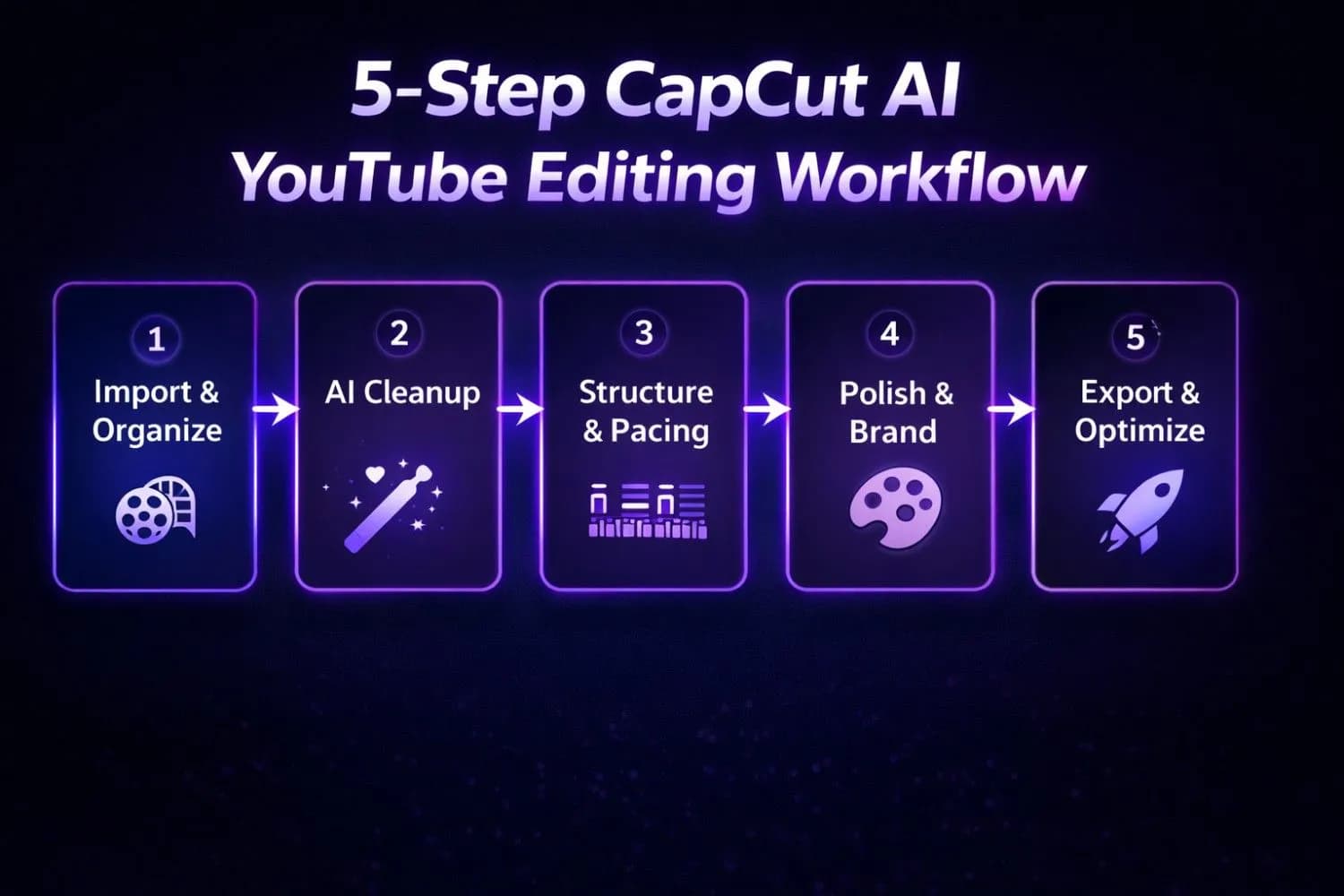
CapCut AI 5-Step YouTube Editing Workflow — Import, AI Cleanup, Structure, Polish, Export
Now that you understand each AI feature, here's how to combine them into an efficient YouTube production workflow:
The 5-Step CapCut AI Workflow for YouTube
Step 1: Import & Organize (5 minutes)
- Import all raw footage, B-roll, and assets
- Arrange clips in rough chronological order
- Set your project to 1080p 60fps (or 4K if available)
Step 2: AI Cleanup (10 minutes)
- Apply Smart Cutto remove silences and filler words
- UseAI Enhanceto stabilize and upscale footage
- ApplyAI Background Removal to talking-head clips
Step 3: Structure & Pacing (15 minutes)
- Add Auto Captionsand review for accuracy
- ApplyBeat Syncto music-backed sections
- AddAuto Reframe versions for Shorts repurposing
Step 4: Polish & Brand (10 minutes)
- Apply color grading (Auto Color + manual adjustments)
- Add AI Templatesfor intros, outros, and transitions
- InsertText to Speechvoiceovers where needed
- AddObject Tracking effects for key moments
Step 5: Export & Optimize (5 minutes)
- Export at 1080p or 4K for YouTube
- Export 9:16 version for YouTube Shorts
- Use YouTube Title Generator to create SEO-optimized titles
- Generate tags with YouTube Tag Generator
- Write descriptions with YouTube Description Generator
Important
Export Settings for YouTube: Always export at H.264 or H.265 codec, 1080p minimum, 60fps for gaming/action content, 30fps for talking-head videos. Bitrate: 8–16 Mbps for 1080p, 35–45 Mbps for 4K. These settings ensure YouTube processes your video at the highest quality level.
---
CapCut AI for YouTube Shorts: The Complete Strategy
YouTube Shorts is the fastest-growing content format on the platform, with Shorts monetization now available to creators worldwide. CapCut's AI features are specifically optimized for vertical short-form content.
Shorts-Specific CapCut AI Features
Auto Captions for Shorts:
- Use word-by-word animation for maximum retention
- Bold, large fonts (minimum 40pt) for mobile readability
- High-contrast colors (white/yellow on dark backgrounds)
- Position in the center-lower third of the frame
Beat Sync for Shorts:
- Use trending audio from CapCut's built-in library
- Apply "Strong" beat sync for energetic content
- Keep Shorts under 40 seconds for highest completion rates
AI Templates for Shorts:
- Filter templates by "Shorts" or "Vertical"
- Look for templates with 100K+ uses (proven viral formats)
- Customize with your brand colors and fonts
Auto Reframe for Shorts:
- Convert landscape YouTube videos to Shorts automatically
- Use to repurpose your best long-form moments
- Creates a Shorts-to-long-form traffic funnel
For a complete Shorts growth strategy, read our YouTube Shorts viral strategy guide.
---
CapCut AI vs. Competitors: Which AI Editor Wins for YouTube?
| Feature | CapCut | InShot | VN Editor | Descript |
|---|---|---|---|---|
| Price | Free | Free/Paid | Free | $12+/month |
| AI Background Removal | ✅ | ✅ Limited | ❌ | ❌ |
| Auto Captions | ✅ 50+ langs | ✅ Limited | ✅ | ✅ |
| Smart Cut | ✅ | ❌ | ❌ | ✅ |
| Beat Sync | ✅ | ✅ | ✅ | ❌ |
| Text to Speech | ✅ 100+ voices | ❌ | ❌ | ✅ |
| AI Upscaling | ✅ | ❌ | ❌ | ❌ |
| Object Tracking | ✅ | ❌ | ❌ | ❌ |
| Templates | ✅ Millions | ✅ | ✅ | ❌ |
| Desktop App | ✅ | ❌ | ❌ | ✅ |
Verdict:For YouTube creators who need a free, all-in-one AI editing solution, CapCut is unmatched. The combination of Smart Cut, Auto Captions, Beat Sync, and AI Background Removal in a single free platform makes it the top choice for creators at every level.
---
Maximizing Revenue with CapCut AI: High-CPC Content Strategies
The quality of your editing directly impacts your YouTube revenue. Higher production quality leads to:
-Longer watch time→ Higher RPM from mid-roll ads
-Better viewer retention→ More ad impressions per video
-Professional appearance→ Attracts higher-paying sponsorships
-Consistent uploads → Faster channel growth and monetization
High-CPC Niches Where CapCut AI Excels
Finance & Investment Content ($8–$25 CPM):
- Use Auto Captions for accessibility and SEO
- Apply professional color grading for credibility
- Use Text to Speech for data-heavy explainer videos
Software & Tech Reviews ($5–$18 CPM):
- AI Background Removal for clean product showcases
- Screen recording + AI Enhance for crisp tutorial quality
- Object Tracking to highlight UI elements
Business & Marketing ($6–$20 CPM):
- Professional templates for case study videos
- Beat Sync for dynamic presentation-style content
- Auto Reframe for multi-platform distribution
Use our YouTube Earnings Calculator to estimate your potential revenue based on your niche, views, and audience location. For Tier 1 countries (USA, UK, Canada, Australia), CPM rates are 3–5x higher than global averages — making production quality an even more important investment.
---
Common CapCut AI Mistakes to Avoid
Mistake 1: Over-relying on Smart Cut
Smart Cut is powerful but not perfect. Always review cuts manually, especially for content with intentional pauses or emotional beats.
Mistake 2: Using Low-Quality Source Footage
AI Enhance can improve footage quality, but it can't fix severely underexposed or blurry footage. Start with the best possible source material.
Mistake 3: Ignoring Caption Accuracy
Auto Captions achieve 85–95% accuracy, but errors can damage credibility. Always review captions before publishing, especially for technical or niche-specific terminology.
Mistake 4: Overusing AI Templates
Templates are a starting point, not a finished product. Customize every template with your brand colors, fonts, and style to maintain a unique channel identity.
Mistake 5: Skipping the Export Optimization
CapCut's default export settings may not be optimal for YouTube. Always manually set resolution (1080p/4K), codec (H.264/H.265), and bitrate for best quality.
---
CapCut AI Features: Action Plan for YouTube Creators
Ready to transform your YouTube editing workflow? Here's your 7-day implementation plan:
Day 1–2: Setup & Basics
- Download CapCut desktop and mobile apps
- Import your last 3 videos and practice Smart Cut
- Generate Auto Captions for existing videos and re-upload
Day 3–4: AI Features Deep Dive
- Practice AI Background Removal on a talking-head clip
- Experiment with Beat Sync on a music-backed montage
- Create a Text to Speech voiceover for a short explainer
Day 5–6: Workflow Integration
- Build your first complete video using the 5-step AI workflow
- Create a Shorts version using Auto Reframe
- Export and upload both versions
Day 7: Optimization
- Analyze performance of AI-edited vs. previous videos
- Optimize titles and tags with YouTube Tag Generator
- Plan your next 4 videos using the AI workflow
---
Conclusion: CapCut AI Is the Future of YouTube Editing
CapCut's AI features represent a fundamental shift in how YouTube content is created. What once required a professional editor, expensive software, and hours of manual work can now be accomplished in a fraction of the time — for free.
The creators who master CapCut's AI toolkit in 2026 will have a significant competitive advantage: faster production cycles, higher quality output, and more time to focus on content strategy and audience growth.
Start with the features that address your biggest bottlenecks — whether that's Smart Cut for pacing, Auto Captions for accessibility, or AI Background Removal for production quality. Then systematically integrate the full AI workflow as you become comfortable with each tool.
For a complete YouTube growth strategy beyond editing, explore our full suite of free YouTube tools — including the YouTube Title Generator, YouTube Tag Generator, YouTube Description Generator, and YouTube Earnings Calculator. Together with CapCut's AI editing capabilities, these tools give you everything you need to build a successful, monetized YouTube channel in 2026.
Topics
❓Frequently Asked Questions
What are the best CapCut AI features for YouTube editing?
The best CapCut AI features for YouTube editing are: (1) Smart Cut — automatically removes silences and filler words to improve pacing; (2) Auto Captions — generates accurate subtitles in 50+ languages to boost accessibility and SEO; (3) AI Background Removal — removes backgrounds without a green screen; (4) Beat Sync — aligns video cuts to music beats automatically; (5) Text to Speech — creates natural AI voiceovers from typed scripts; and (6) Auto Reframe — converts landscape videos to vertical format for YouTube Shorts. All these features are available for free in CapCut's desktop and mobile apps.
Is CapCut good for YouTube video editing?
Yes, CapCut is excellent for YouTube video editing in 2026. It offers professional-grade AI tools including auto captions, background removal, smart cut, beat sync, and video upscaling — all for free. CapCut is available on desktop (Windows and Mac), mobile (iOS and Android), and web browser. It supports 4K export, H.264/H.265 codecs, and YouTube-optimized export settings. For creators who want professional results without the cost of Adobe Premiere Pro ($55/month), CapCut is the top free alternative.
How do I use CapCut AI to remove background from video?
To remove background using CapCut AI: (1) Import your video clip into the CapCut timeline; (2) Select the clip and tap 'Remove BG' in the toolbar; (3) Choose 'Auto Removal' — CapCut's AI processes the clip in seconds; (4) Use the 'Refine Edge' brush to clean up any imperfections around hair or complex edges; (5) Add a new background (solid color, image, or video). The AI background removal works best with good lighting and clothing that contrasts with the background. No green screen is required.
Can CapCut generate automatic captions for YouTube videos?
Yes, CapCut can automatically generate captions for YouTube videos in 50+ languages. To use Auto Captions: go to 'Text' → 'Auto Captions', select your video's language, and tap 'Start'. CapCut transcribes your audio using AI with 85–95% accuracy. You can then edit errors, customize the font, size, color, and animation style, and export captions burned into the video or as a separate SRT file for uploading to YouTube. Accurate captions improve YouTube SEO, accessibility, and watch time.
How does CapCut Smart Cut work for YouTube editing?
CapCut Smart Cut automatically detects and removes silences, dead air, and filler words (like 'um', 'uh', 'like') from your video. To use it: select your clip, go to 'Edit' → 'Smart Cut', set your silence threshold (0.5–1.0 seconds recommended), preview the suggested cuts, and apply. Smart Cut can reduce a 20-minute raw recording to a tight 12-minute video automatically, improving pacing and average view duration — a critical metric for YouTube's algorithm. Always preview cuts before applying to avoid removing intentional pauses.
Is CapCut free for YouTube creators?
Yes, CapCut is free for YouTube creators. The core app — including AI background removal, auto captions, smart cut, beat sync, text to speech, auto reframe, and AI templates — is available at no cost on desktop (Windows/Mac), mobile (iOS/Android), and web browser. CapCut does offer a paid CapCut Pro subscription ($7.99/month) that unlocks additional premium templates, effects, and cloud storage, but the free version is fully capable for professional YouTube video production.
What export settings should I use in CapCut for YouTube?
For YouTube, use these CapCut export settings: Resolution: 1080p (minimum) or 4K; Frame Rate: 30fps for talking-head/tutorial videos, 60fps for gaming/action content; Codec: H.264 (most compatible) or H.265 (smaller file size); Bitrate: 8–16 Mbps for 1080p, 35–45 Mbps for 4K; Format: MP4. For YouTube Shorts, export at 1080×1920 (9:16 aspect ratio) at 30fps. These settings ensure YouTube processes your video at the highest quality level and minimizes re-compression artifacts.
How does CapCut Beat Sync work for YouTube videos?
CapCut Beat Sync analyzes your background music's beat pattern and automatically aligns video cuts to the rhythm. To use it: add background music to your timeline, select all video clips, tap 'Beat Sync', and choose sync intensity (Light, Medium, or Strong). CapCut repositions cuts to align with musical beats automatically. Beat Sync is particularly effective for travel vlogs, highlight reels, product showcases, and YouTube Shorts. For high-energy content like gaming or sports, use 'Strong' sync intensity for maximum impact.
Can I use CapCut for YouTube Shorts editing?
Yes, CapCut is one of the best tools for YouTube Shorts editing. Key Shorts features include: Auto Reframe (converts landscape videos to 9:16 vertical format automatically), Beat Sync (aligns cuts to trending music), Auto Captions with word-by-word animation (boosts retention), and thousands of Shorts-specific templates. Export Shorts at 1080×1920 resolution, 30fps, H.264 codec. CapCut's template library includes millions of trending Shorts formats, making it easy to replicate viral editing styles.
How does CapCut Text to Speech compare to other AI voiceover tools?
CapCut's Text to Speech offers 100+ AI voices across 40+ languages, including multiple English accents (American, British, Australian, Indian), emotional styles (calm, energetic, serious), and character voices (news anchor, narrator, storyteller). It's free and integrated directly into the editing workflow. Compared to standalone TTS tools like ElevenLabs ($5+/month) or Murf ($19+/month), CapCut's TTS is less customizable but completely free and sufficient for most YouTube use cases. For faceless channels and explainer videos, CapCut TTS provides excellent quality at zero cost.
Free tools for this topic
Apply what you just read with free creator tools — no signup required.