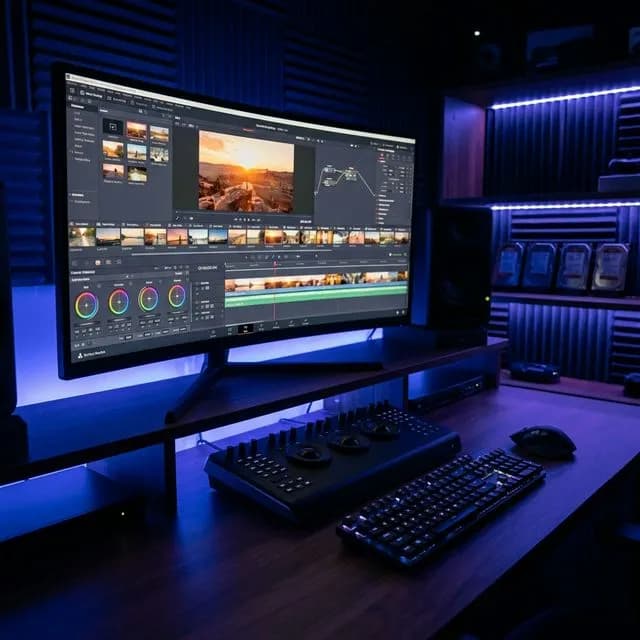
If you just downloaded DaVinci Resolve and you're staring at what feels like the cockpit of a fighter jet — take a breath. I've been where you are.
I remember opening Resolve for the first time expecting something like Windows Movie Maker plus a few extra buttons. Instead, I got six separate tabs across the bottom of the screen, a color node graph that looked like a circuit board, and a Fairlight audio page that could genuinely rival a professional recording studio. I closed the app and opened iMovie instead.
That was a mistake I spent six months regretting.
Because here's what nobody tells you upfront: you don't need to understand all of DaVinci Resolve to use DaVinci Resolve. You need to understand about 20% of it to produce genuinely professional-quality YouTube videos. And that's exactly what this guide covers — the 20% that matters for your channel, explained in plain English, step by step.
Important
Why DaVinci Resolve for YouTube specifically?
Blackmagic Design gives the full, uncompromised professional version of DaVinci Resolve away for free. Permanently. No watermarks. No trial period. No time limit. The free version is the exact same software that Hollywood feature films and major streaming productions use. The paid Studio version just adds AI noise reduction, collaborative multi-user support, and a few additional third-party plugin integrations — none of which matter if you're starting a YouTube channel.
What Is DaVinci Resolve? (And Why It Beats the Competition)
DaVinci Resolve is a non-linear video editor (NLE) built by Blackmagic Design, an Australian camera and post-production hardware company. What makes it genuinely different from competitors like Adobe Premiere Pro or Final Cut Pro isn't just the price — it's the architecture.
Most video editors treat color grading as an afterthought, tacking on a simplified color panel to an editing-focused tool. Resolve was built the other way around. It started life as a dedicated Hollywood color correction system used on films like *Mad Max: Fury Road* and *La La Land* before Blackmagic added a full editing suite on top of it.
This heritage means the color tools in Resolve's free version are legitimately better than what you get in Premiere Pro at $60 per month. For YouTube creators, that color advantage matters more than it sounds — viewers consciously or subconsciously judge video quality to a significant degree by the richness and consistency of the image.
How DaVinci Resolve Compares to Other Free Editors
| Feature | DaVinci Resolve (Free) | CapCut | iMovie | Kdenlive |
|---|---|---|---|---|
| Color Grading Tools | ★★★★★ Professional | ★★★ Filters only | ★★ Basic | ★★★ Moderate |
| Audio Editing (Fairlight) | ★★★★★ Full DAW | ★★ Limited | ★★ Basic | ★★★ Moderate |
| Performance on Mid-Range PC | ★★★★ GPU-accelerated | ★★★★ Cloud-based | ★★★★★ Mac-native | ★★★ Variable |
| Export Quality (4K H.265) | ★★★★★ Full control | ★★★ Limited | ★★★★ Good | ★★★★ Good |
| Learning Curve | Moderate | Easy | Very Easy | Moderate |
| Watermarks | None | None (with account) | None | None |
The verdict is clear: for any creator who takes their channel seriously and wants to dramatically improve their video quality beyond basic cuts, DaVinci Resolve is the answer. For complete beginners who want something to start posting within 24 hours, check out our best free video editors for YouTube 2026 guide, which covers simpler options like CapCut and Kdenlive alongside Resolve.
---
Before You Begin: System Requirements and Download
Minimum System Requirements (2026)
To run DaVinci Resolve smoothly while editing standard YouTube content (1080p H.264/H.265 footage from your phone or camera), your computer needs at least:
-OS:Windows 10 64-bit or later / macOS 11 Big Sur or later
-RAM:16GB (32GB recommended for consistent 4K editing)
-GPU:OpenCL 1.2 or CUDA 10 capable — an NVIDIA GTX 1060 or AMD RX 580 or better
-GPU Memory:8GB VRAM minimum (4GB can work with proxy workflows)
-Storage:10GB free for Resolve installation + fast storage for your project files (SSD is strongly recommended)
Warning
The 8GB RAM Trap:If your computer only has 8GB of RAM, Resolve will technically open, but it will struggle with real-time playback of 4K footage. If you're in this situation, use theproxy workflowexplained later in this guide, or check out our guide to picking the right laptop for video editing if an upgrade is in your future.
How to Download DaVinci Resolve Free
- Go to the official Blackmagic Design website: blackmagicdesign.com/products/davinciresolve
- Click the large"Download"button under "DaVinci Resolve" (NOT "DaVinci Resolve Studio").
- Fill in the registration form (you don't need to provide real details — Blackmagic just uses this for market research).
- Download the installer for your operating system and run it.
The download is typically 1.5–2.5GB, so give it a few minutes. Once installed, you're ready.
---
Understanding the Six Pages of DaVinci Resolve
When you open Resolve for the first time, you'll see a row of six icons at the very bottom of the screen. Each icon is a separate "page" — an entirely different workspace optimized for a specific stage of the editing process. This is where most beginners get overwhelmed and give up.
Here's the simple truth:for making YouTube videos, you will primarily use only three of these pages. Let's break all six down briefly so you understand the big picture.
The Six Pages at a Glance
1. 🎬 Media Page
This is your file management hub. Before you edit, you import your footage here, organize it into bins (folders), and optionally connect to external drives. Think of it as your Finder/File Explorer inside Resolve.
2. ✂️ Cut Page
This is Resolve's fast-edit mode designed for quick assembly edits. It features a simplified two-panel timeline and is perfect for beginners who want a gentler learning curve than the full Edit page.
3. 🎞️ Edit Page
This is the full-featured traditional NLE timeline. If you've ever used Premiere Pro or Final Cut, this will feel familiar. It's where 90% of your actual editing happens once you're past the beginner stage.
4. 🎨 Fusion Page
This is a node-based visual effects compositor — essentially a free version of Adobe After Effects built directly into Resolve. For most YouTube creators, you won't touch this page until you're comfortable with editing and color. Don't worry about it now.
5. 🌈 Color Page
This is DaVinci Resolve's legendary crown jewel. The professional color correction and grading suite. This is where your footage goes from looking like a smartphone clip to looking like a Netflix series.
6. 🎵 Fairlight Page
A full-featured Digital Audio Workstation (DAW) for professional audio mixing, noise reduction, dialogue cleanup, and sound design. For YouTube, you'll use this primarily for removing background noise and balancing audio levels.
7. 🚀 Deliver Page
This is where you export your finished video. You configure your codec, resolution, bitrate, and destination, then hit Render.
---
Step 1: Setting Up Your First Project Correctly
Getting your project settings right before you start saves you enormous headaches later. A common beginner mistake is starting a project with the wrong frame rate, then finding out their footage doesn't match the timeline after hours of work.
Creating a New Project
- Open DaVinci Resolve. You'll land on the Project Managerscreen.
- Click the big"New Project"button at the bottom right.
- Give your project a descriptive name (e.g., "My Channel - Episode 01 - March 2026"). Good naming habits now save you enormous time when you have 50 projects to manage.
- The project opens automatically and puts you on theMedia Page.
Configuring Timeline Settings
Before importing any footage, set your timeline resolution and frame rate correctly.
- Go to File → Project Settings(or pressShift + 9).
- Under Master Settings, set yourTimeline Resolutionto match your footage:
- For standard YouTube uploads:1920x1080 (HD)
- For 4K YouTube uploads: 3840x2160 (UHD)
- Set your Timeline Frame Rateto exactly match your camera's shooting frame rate:
- If you shoot at 24fps → set 24fps (cinematic look)
- If you shoot at 30fps → set 30fps (standard YouTube look)
- If you shoot at 60fps → set 60fps (great for gaming, sports, and high-motion content)
- ClickSaveand close the settings dialog.
Pro Tip
Don't know what frame rate your camera shoots?On your phone, go to Camera Settings → Video and check the recording resolution and FPS. Most modern phones default to 1080p/30fps or 4K/30fps. On a DSLR or mirrorless, check your Record menu.
---
Step 2: Importing Your Footage (Media Page)
Now that your project settings are configured, it's time to bring your footage into Resolve.
The Media Import Process
- Click theMediatab (the film strip icon, first tab on the bottom left).
- On the left side of the Media page, navigate to the folder on your computer where your video files are stored.
- Select your footage files. You can select multiple files at once usingCtrl+Click(Windows) orCmd+Click(Mac).
- Drag your selected files into theMedia Poolpanel (the central area of the Media page).
Your clips are now imported into Resolve. Note that Resolve does not actually copy your files — it just creates references to their location on your drive. This means if you move your source files to a different folder after importing, Resolve will lose track of them (you'll see "Media Offline" errors).Never move your source footage after starting a project.
Organizing with Bins
If you have a lot of footage — like multiple takes, drone shots, and B-roll — create organized bins before editing:
- Right-click in the Media Poolarea →Add Bin.
- Right-click the new bin and rename it meaningfully: "A-Roll," "B-Roll," "Music," "SFX," "Graphics."
- Drag your clips into the appropriate bins.
This organization pays dividends when you're deep into an edit looking for that perfect reaction shot buried in 40 clips.
---
Step 3: Editing on the Cut Page (Perfect for Beginners)
The Cut page is DaVinci Resolve's purpose-built fast editing workspace. For YouTube beginners, it's genuinely the best place to start assembling your first edit because it removes a lot of the complexity of the full Edit page while still giving you a professional result.
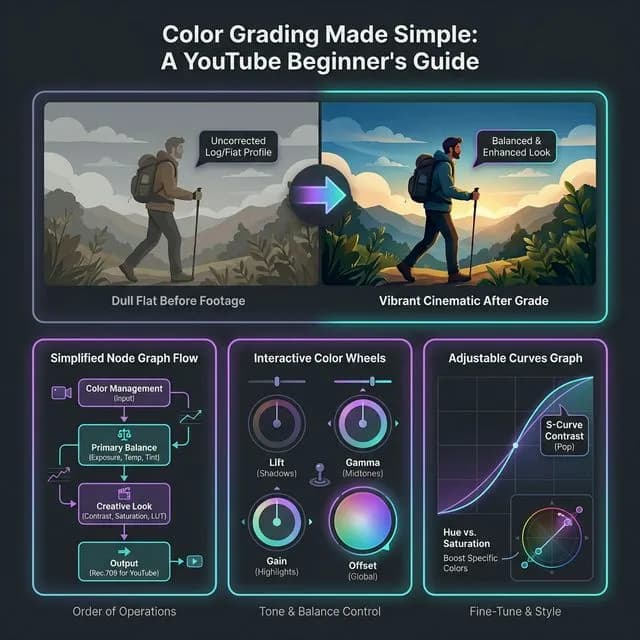
DaVinci Resolve Color Grading Guide
*The DaVinci Resolve color grading workspace — the most powerful free color tool available for YouTube creators in 2026.*
Understanding the Cut Page Layout
The Cut page consists of:
- Source Viewer (Top Left):Preview your clips before adding them to the timeline.
-Timeline Viewer (Top Right):Preview what your assembled edit currently looks like.
-Master Timeline (Bottom Full Width):A full-view of your entire project from start to finish.
-Zoomed Timeline (Middle):A zoomed-in view of the section you're currently working on — this is the key innovation of the Cut page.
Adding Clips to the Timeline
- Navigate to theCutpage (second icon from the left on the bottom bar — it looks like a scissors icon).
- Double-click a clip in your Media Pool to load it into the Source Viewer.
- In the Source Viewer, use theIn (I)andOut (O)markers to select only the portion of the clip you want.
- Click the"Append to End"button (the icon that looks like a film strip with an arrow pointing right) to add the selected portion to your timeline.
- Repeat for additional clips to build your rough cut.
Essential Cut Page Keyboard Shortcuts
| Action | Windows Shortcut | Mac Shortcut |
|---|---|---|
| Set In Point | I | I |
| Set Out Point | O | O |
| Append Clip to Timeline | F12 | F12 |
| Split Clip at Playhead | Ctrl+B | Cmd+B |
| Play/Pause | Space | Space |
| Move Playhead Left/Right | Arrow Keys | Arrow Keys |
| Ripple Trim Left Edge | Ctrl+Shift+[ | Cmd+Shift+[ |
Note
The Ripple Trim is your best friend.When you delete a section of a clip using the Split (Ctrl+B) tool and then delete the highlighted section, useRipple Delete(Ctrl+Shift+Backspace on Windows, Cmd+Shift+Backspace on Mac) instead of regular Delete. Ripple Delete removes the clip AND automatically closes the gap, saving you from manually shuffling all your other clips down the timeline.
---
Step 4: Polishing the Edit Page
Once you have a rough cut assembled on the Cut page, the Edit page is where you refine it with more precision. Click theEdit tab (the film strip icon with a pencil on the bottom toolbar).
Key Edit Page Features for YouTube Creators
Transitions:Right-click the cut point between two clips and selectAdd Transition (or press Ctrl+T for a default Cross Dissolve). For YouTube, use transitions sparingly — the best creators use hard cuts 90% of the time and only use transitions to signal genuine time shifts or tonal changes.
Speed Changes:Right-click any clip in the timeline →Change Clip Speed. Use this to create slow-motion effects or time-lapses. For dramatic slow-motion on standard 30fps footage, shoot at 120fps in your camera settings to get buttery smooth retimed footage.
Text and Titles:Go to theEffects Library(Shift+9 shortcut doesn't work here — look for the "Effects" button in the top toolbar) →Titles→ Drag a title onto your timeline above your footage. Double-click it in the Inspector panel to change the text content and font.
---
Step 5: Color Grading for YouTube (The Big Differentiator)
This is where DaVinci Resolve genuinely leaves every other free editor in the dust. Color grading is arguably the single fastest way to improve the perceived quality and professionalism of your YouTube videos.
Click theColortab (the gradient circle icon near the bottom right).
Understanding the Color Page Layout
The Color page looks intimidating, but there are three main areas you need to understand:
1.The Viewer (Top Center):This shows your footage frame.
2.The Node Graph (Center):This is where your color corrections are applied as a chain. Think of nodes like adjustment layers in Photoshop — each node applies a specific correction. You always start with at least Node 1.
3.The Color Wheels (Bottom Center):The primary correction tool. Three balls connected by a horizontal line:Lift(shadows),Gamma(midtones),Gain (highlights).
The 3-Step YouTube Color Grade (For Beginners)
Step 1: Exposure Correction (Node 1)
Before anything else, make sure your footage is properly exposed. Open the Scopespanel (View → Scopes → Waveform). The Waveform shows your exposure level. Ideally, your shadows should cluster around the 10-30 IRE mark and your highlights should never clip above 100 IRE.
- If the image is dark (footage underexposed): Drag theGamma(midtones) wheel upward and slightly raise theGainball.
- If the image is too bright (overexposed): Pull theGain ball downward to bring highlights back.
Step 2: White Balance (Node 2)
Click the +button to add a second node. Now you'll use the node to fix your white balance. The fastest method: use theColor Qualification eyedropper tool. Click the eyedropper and then click something in your frame that you know should be neutral gray or white (like a white wall, paper, or shirt). Resolve will automatically adjust the entire image's color temperature to zero that reference point to perfect white.
Step 3: Contrast and Saturation (Node 3)
Add a third node. On the Curvespanel (click the "Curves" icon in the bottom toolbar dropdown), you'll see a diagonal line. Pulling this line into an S-curve (slightly up on the highlights, slightly down on the shadows) adds contrast and makes your image pop. Finally, in theColor Wheelspanel, find theSaturationslider (to the right of the wheels) and increase it slightly to 55-60 from the default 50. This adds just enough vibrancy to make your YouTube thumbnail extraction more compelling.
Pro Tip
The biggest color grading mistake beginners make is over-saturating and over-contrasting their footage. Your goal is *natural* enhancement, not a filter look. A YouTube viewer should feel like they're watching something more cinematic than reality — not that they've put on Instagram sunglasses. Subtle grading that makes skin tones look healthy and the background look rich will keep viewers watching longer.
---
Step 6: Audio Editing for YouTube (Fairlight Basics)
A lot of YouTube guides skip over audio because it's less visually exciting than color grading. But audio quality has a *bigger* impact on YouTube watch time than video quality, according to Blackmagic Design's own research.
Here are the three absolute essential audio fixes every YouTube video needs.
Remove Background Noise with Resolve's AI Noise Reduction
Warning
The AI-powered Voice Isolation and Noise Reduction in DaVinci Resolve is a DaVinci Resolve Studio (paid) feature. However, the free version of Resolve does include the standard manual noise reduction, which works well for most scenarios.
In the Fairlightpage:
- Click on your audio clip in the timeline to select it.
- Go toClip → Noise Reduction→Open Noise Reduction.
- Press Playfor a few seconds and then clickLearnto let Resolve sample your background noise profile.
- Enable the Noise Reduction (toggle it on), and adjust theThresholdslider until background hiss disappears without affecting your voice.
Normalize Your Audio Levels
YouTube's audio standard is-14 LUFS integrated loudness. If your audio is too quiet or too loud, YouTube's automatic processing will adjust it after upload, often making it sound worse.
- In the Fairlight page, right-click your main audio track → Normalize Audio Levels.
- In the normalization dialog, set the target to -14 LUFS (Integrated).
- Click Normalize. Resolve will automatically adjust the volume of your clip to meet the standard.
Add Background Music for Production Value
After normalizing your dialogue track, add your background music to a separate audio track in the timeline. Import a royalty-free track first (YouTube's Audio Library is a free, safe source of music for monetized YouTube videos). Lower the music track's volume to approximately -25dB to -30dB so it sits well below your voice without fighting it for attention.
For more comprehensive audio strategies that can help retain viewers and boost your channel, check out our guide on how to get more views on YouTube in 2026 — strong audio is one of the top retention factors covered there.
---
Step 7: Exporting Your Video for YouTube (Deliver Page)
This is it — the final step. Click the Deliver tab (the rocket icon, far right on the bottom toolbar).
The Optimal YouTube Export Settings 2026
In the Deliver page on the left panel:
Under "Video" settings:
- Format:MP4
-Codec:H.264 (for standard uploads) or H.265/HEVC (for better quality at smaller file sizes — choose if your channel is established and you have faster upload speeds)
-Resolution:Match your project settings (1920x1080 or 3840x2160)
-Frame Rate:Match your project settings (same FPS as your footage)
-Quality:UseRestrict tomode and set to40,000 Kbpsfor 4K, or16,000 Kbpsfor 1080p. (This ensures you're giving YouTube the best possible quality to re-encode from, which results in noticeably better-looking video on the platform.)
-Encode Audio: ✅ Enabled
Under "Audio" settings:
- Codec:AAC
-Sample Rate:48,000 Hz
-Bit Depth:24 bit
-Bit Rate:320 kbps
Once configured, click"Add to Render Queue"(button on the right). Then in the Render Queue panel (upper right), click the big"Render All" button. Your finished video file will appear in the folder you specified.
Your video is ready for YouTube.
---
DaVinci Resolve Tips Specifically for YouTube Growth
Getting a well-edited video is just the first step. Making sure that video actually gets *found* on YouTube is a whole separate discipline.
After you export and upload your DaVinci Resolve edit to YouTube Studio, make sure you do the following:
- Write an SEO-optimized title.Use our YouTube Title Generator to instantly generate dozens of high-CTR, keyword-rich title variations for your video in seconds. A compelling title is what gets a viewer to click — your DaVinci Resolve edit keeps them watching.
2.Generate a complete, keyword-dense description.Our YouTube Description Generator creates fully structured descriptions with timestamps, keywords, and calls-to-action automatically. This directly increases your video's search discoverability.
3.Find the right tags.Tags help YouTube categorize your content, especially for misspelled keyword variations. Use our YouTube Tag Generator to pull the exact tags high-performing videos in your niche are using.
4.Calculate your potential earnings.Once you qualify for the YouTube Partner Program, use our YouTube Earnings Calculator to project your monthly revenue based on your niche and country traffic mix. This helps you decide which topics are worth creating video editing tutorials about.
5.Audit your channel regularly. A clean, professional channel with consistent branding earns more trust with both viewers and the YouTube algorithm itself.
---
Next Steps: Going Beyond the Basics
Once you're comfortable with the standard Cut → Color → Fairlight → Deliver workflow, here's where to go next inside DaVinci Resolve.
Learn the Fusion Page for Motion Graphics: Once you're comfortable with the Fusion node graph, you'll be able to create animated lower-thirds, custom text animations, and even composited effects that would cost hundreds of dollars per month on subscription platforms. While complex, Fusion is genuinely powerful and fully free.
Learn LUTs (Look-Up Tables): LUTs are one-click color presets. You can download free cinematic LUTs from dozens of websites and apply them as a starting point for your color grade, dramatically speeding up your Color page workflow. Many YouTube creators batch their color grades using a channel-specific LUT to maintain visual consistency across all their videos.
Try Multi-Cam Editing:If you film yourself from two camera angles (a very popular YouTube technique that dramatically increases perceived production value), the DaVinci Resolve Multi-Cam Sync tool automatically synchronizes multiple camera angles using audio waveform matching and lets you switch between them in real-time during playback.
For a broader look at the best laptops that will run DaVinci Resolve smoothly while editing your YouTube content, check out our Best Laptops for Video Editing 2026 guide to see which machines give you the best DaVinci Resolve performance for the price.
---
Backlink Resources: Where to Learn More About DaVinci Resolve
To deepen your knowledge beyond this guide, here are the best external resources that the professional video editing community consistently recommends:
-Blackmagic Design's Official DaVinci Resolve Training— Free official certification program by the creators of the software. Fully comprehensive and leads to a globally recognized certification.
-Casey Faris YouTube Channel— Arguably the best free DaVinci Resolve tutorial channel on YouTube. Casey explains every concept in genuinely plain, beginner-friendly English.
-MrAlexTech (DaVinci Resolve Channel)— Excellent fast-format tutorials with a focus on practical results, perfect for busy creators.
-The DaVinci Resolve Official Forum— When you face a specific technical question that no tutorial covers, the Blackmagic official forum has an incredibly active community of professional colorists and editors.
---
The Bottom Line: DaVinci Resolve is Your Competitive Edge
YouTube has never been more competitive, and the quality bar has never been higher. Viewers in 2026 have been conditioned by Netflix, Apple TV+, and premium content to expect a certain standard — even from individual creators.
DaVinci Resolve is the tool that lets you meet that standard for absolutely free.
Yes, the learning curve is steeper than drag-and-drop mobile apps. But the payoff — in video quality, color accuracy, audio professionalism, and export control — is immense. Every single view on your channel is an opportunity to retain a subscriber. And retaining subscribers is what drives the compounding YouTube growth that eventually brings the real financial rewards.
Start with the Cut page. Build your first video. Export it using the settings above. Then come back here and tackle the Color page. One page at a time, one video at a time.
That's how YouTube channels get built. That's how creators go from zero to monetized.
Want to make sure that your beautifully edited video actually gets discovered? Use our free YouTube SEO tools — including the Tag Generator, Title Generator, and Description Generator — to give your video the algorithmic push it needs the moment it goes live.
Topics
❓Frequently Asked Questions
Is DaVinci Resolve really free for YouTube editing?
Yes, completely free, with no watermarks, no time limits, and no subscription required. Blackmagic Design offers the full professional version of DaVinci Resolve at no cost. The paid Studio version ($295 one-time) adds AI noise reduction, multi-user collaboration, and some third-party plugins — but for the vast majority of YouTube creators, the free version is more than sufficient to produce high-quality, professional content.
What are the best DaVinci Resolve export settings for YouTube in 2026?
For the best YouTube quality, export as MP4 with H.264 codec at 16,000 Kbps for 1080p or 40,000 Kbps for 4K. Set audio to AAC at 320kbps, 48,000 Hz, 24-bit. This gives YouTube the best quality source material to re-encode from, resulting in noticeably sharper-looking videos compared to exporting at low bitrates.
Should I use the Cut page or the Edit page in DaVinci Resolve?
For beginners, start with the Cut page. It has a simplified interface designed for fast assembly edits with a dual timeline view. Once you're comfortable with basic editing and want more precise control over transitions, speed effects, and multi-track timelines, graduate to the Edit page. Many professional YouTubers use both — assembling rough cuts on the Cut page, then refining on the Edit page.
How do I remove background noise in DaVinci Resolve (free version)?
In the Fairlight page, select your audio clip and go to Clip → Noise Reduction → Open Noise Reduction. Play a section with pure background noise and click 'Learn' to sample the noise profile. Then enable the noise reduction and adjust the Threshold slider until the background hiss disappears without affecting your voice. The free version's noise reduction works well for consistent background noise. For AI-powered voice isolation, you'd need DaVinci Resolve Studio.
Can DaVinci Resolve handle 4K footage for YouTube?
Absolutely. DaVinci Resolve handles 4K footage exceptionally well, even on the free version. For smooth 4K playback during editing, ensure your computer meets the recommended specs (32GB RAM, dedicated GPU with 8GB VRAM). If your machine is slower, enable the proxy workflow: right-click your media in the pool and generate proxy clips at 50% resolution, then switch back to full quality for final export.
How long does it take to learn DaVinci Resolve for YouTube?
To produce a complete, polished YouTube video using the Cut page, basic color correction, and Fairlight audio, most beginners can become functional within 2–3 focused editing sessions (roughly 6–10 hours total). To master the Color page's advanced node-based grading and Fusion's visual effects, expect 2–3 months of consistent practice. The professional certification course from Blackmagic Design is excellent structured learning and takes about 40 hours to complete.
Is DaVinci Resolve better than Adobe Premiere Pro for YouTube?
For YouTube creators specifically, DaVinci Resolve's free version is arguably more valuable than Adobe Premiere Pro at $60/month. Resolve's color grading tools are objectively superior at both price points. Premiere Pro has advantages in ecosystem integration (After Effects, Photoshop) and industry familiarity. However, for a YouTuber focused on producing great-looking videos efficiently at zero software cost, DaVinci Resolve wins on both quality and value every time.
Free tools for this topic
Apply what you just read with free creator tools — no signup required.