Canva has evolved from a simple graphic design platform into a full-blown AI-powered creative suite—and in 2026, it's become one of the most powerful tools available to YouTube creators. Whether you're designing scroll-stopping thumbnails, editing YouTube videos, writing SEO-optimized descriptions, or building a cohesive brand identity across your channel, Canva's AI features can automate hours of work and deliver professional results that rival expensive software.
The platform now serves over 190 million monthly active users across 190 countries, and YouTube creators in Tier 1 markets like the USA, UK, Canada, and Australia are leveraging its AI capabilities to grow channels faster than ever before. In this complete tutorial, we'll walk you through every Canva AI feature relevant to YouTube, show you exactly how to use each one, and reveal pro strategies for maximizing your channel's growth.
Pro Tip
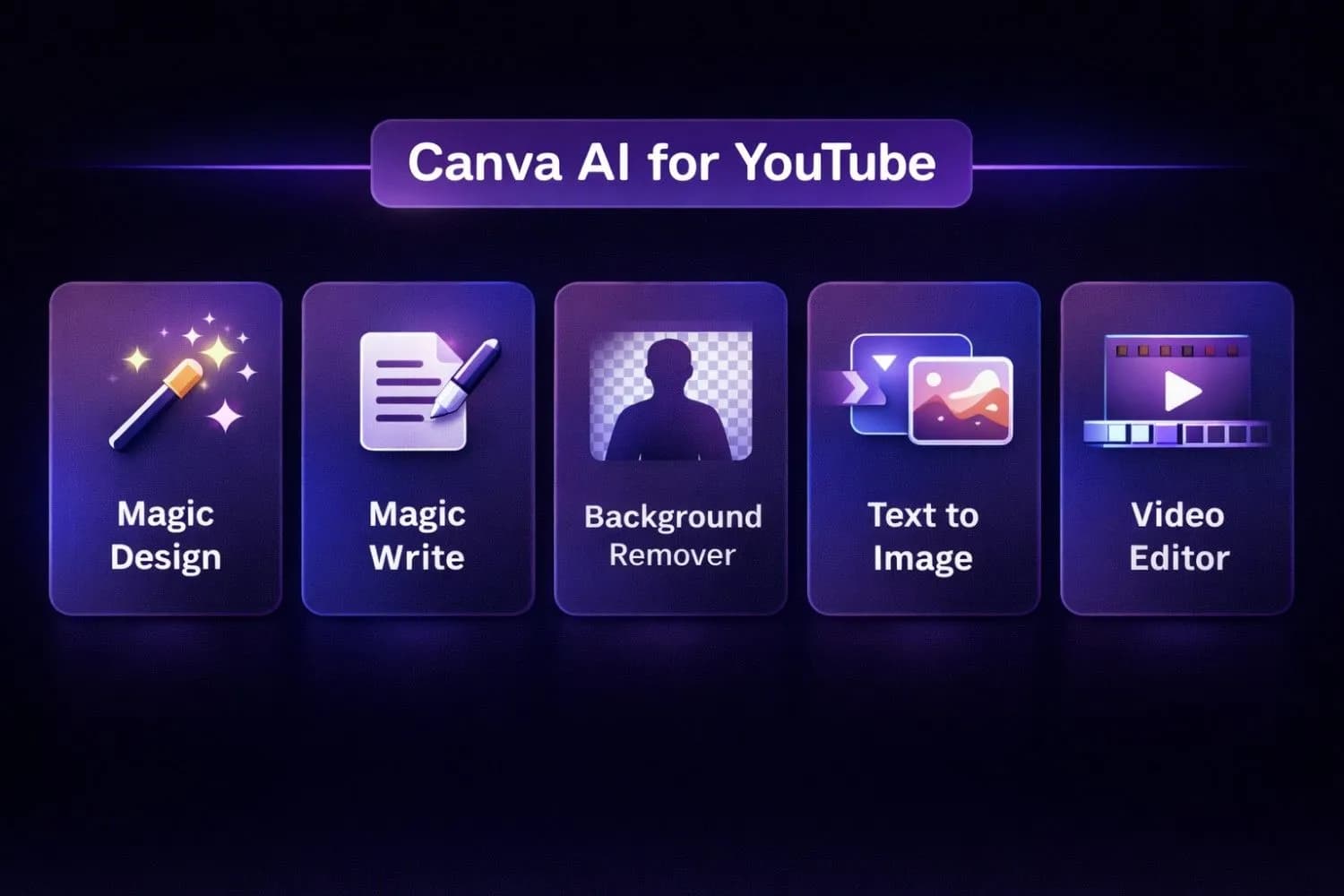
Quick Answer – Best Canva AI Features for YouTube:
1. Magic Design– AI auto-generates professional thumbnails and templates
2.Magic Write– AI copywriting for titles, descriptions, and scripts
3.Magic Edit– One-click background removal + image editing
4.Text to Image– Generate custom visuals from text prompts
5.Canva Video Editor– Full YouTube video editing with AI transitions
Why Canva AI Matters for YouTube Creators in 2026
The YouTube landscape in 2026 is more competitive than ever. With over 800 million videos on the platform, standing out requires professional-quality visuals and optimized content at every touchpoint. Canva's AI features address the two biggest creator bottlenecks:design timeandcreative quality.
The Numbers That Matter
| Metric | Impact |
|---|---|
| Thumbnail CTR | Professional thumbnails increase CTR by 40-65% |
| Brand Consistency | Channels with consistent branding grow 23% faster |
| Content Velocity | AI tools reduce design time by 70-80% |
| Professional Look | 78% of viewers judge channel quality by thumbnail quality |
For creators monetizing through AdSense, even a small CTR improvement translates directly into higher RPM and revenue. If you're targeting high-CPM countries like the USA ($4-15 CPM), UK ($3-12 CPM), and Australia ($5-14 CPM), optimizing every visual element is essential for maximizing earnings.
Important
ROI Reality Check:The average US-based YouTuber earning $3,000/month in AdSense revenue can increase earnings by $500-900/month simply by improving thumbnail CTR from 3% to 6%. Canva Pro ($12.99/month) pays for itself within the first day of improved performance.
Getting Started with Canva for YouTube
Before diving into the AI features, let's set up your Canva workspace specifically for YouTube content creation.
Step 1: Create Your YouTube Workspace
- Sign up at canva.com (free tier works for basic features)
- Create a newBrand Kitwith your channel colors, fonts, and logos
- Set up folders: Thumbnails, End Screens, Channel Art, Community Posts, Shorts Covers
- Save your YouTube channel dimensions as custom templates (1280×720 for thumbnails, 2560×1440 for channel art)
Step 2: Configure Your Brand Kit
Your Brand Kit ensures every piece of content looks cohesive. Upload:
-Logo variations(full logo + icon)
-Brand colors(primary, secondary, accent—max 5 colors)
-Brand fonts(heading + body font—choose bold, readable options)
-Template library (save your best-performing thumbnail layouts)
This consistency is critical. Channels with strong visual branding see higher subscriber conversion rates and better audience retention across videos.
---
Canva AI Thumbnail Generator: Your Secret CTR Weapon
Your thumbnail is the single most important factor in getting clicks. According to YouTube's own data, 90% of the best-performing videos have custom thumbnails. Canva's AI makes creating high-CTR thumbnails faster than ever.
How to Create AI-Powered Thumbnails
Step 1: Start with Magic Design
- Open Canva and search "YouTube Thumbnail" to get the correct dimensions (1280×720)
- Click "Magic Design" and describe your video: *"Tech review thumbnail with shocked expression, neon blue glow, bold text saying 'GAME CHANGER'"*
- Canva's AI generates 6-8 professional template variations instantly
Step 2: Customize with AI Tools
- Magic Edit: Click any element and describe changes: *"Make the background darker"* or *"Add a purple glow effect"*
- Background Remover:One-click extraction of your face/product from any background (Pro feature)
-Magic Eraser: Remove distracting elements from photos without affecting the rest of the image
Step 3: Optimize for CTR
Following the principles of thumbnail design psychology, ensure your thumbnail has:
- High contrastbetween text and background
-Face with emotion(if applicable)—shocked, excited, or curious expressions get 30% higher CTR
-3-4 words maximumof bold, readable text
-Color popthat stands out in YouTube's white and dark mode interfaces
Note
Pro Tip: Create 3 thumbnail variations for every video. Use YouTube's built-in A/B testing (if available on your channel) or test manually by swapping thumbnails after 48 hours and tracking CTR changes in your analytics. For more AI thumbnail strategies, read our guide on the best AI thumbnail generators for YouTube.
Thumbnail CTR Benchmarks by Niche
| Niche | Average CTR | Good CTR | Excellent CTR |
|---|---|---|---|
| Tech & Reviews | 3.5% | 5-7% | 8%+ |
| Gaming | 4.2% | 6-8% | 10%+ |
| Finance & Business | 2.8% | 4-6% | 7%+ |
| Education | 3.0% | 5-7% | 8%+ |
| Entertainment | 5.0% | 7-10% | 12%+ |
---
Magic Design: AI-Powered Templates for Every YouTube Asset
Magic Design isn't just for thumbnails—it's your AI assistant for creating every visual asset your YouTube channel needs.
YouTube Intro & Outro Templates
- Search for "YouTube Intro" in Canva
- Activate Magic Design and describe your style: *"Minimal tech intro, dark background, purple gradient, channel logo reveal"*
- AI generates animated intro templates that match your brand
- Customize timing (keep intros under 5 seconds for optimal retention)
End Screen Templates
Create end screens that drive viewers to more content:
- Use the "YouTube End Screen" template (1920×1080)
- Magic Design generates layouts with subscribe button placement zones, video card areas, and your branding
- Match your end screen design to your thumbnail style for visual consistency
Community Post Graphics
For YouTube's Community tab, create engaging polls, announcements, and behind-the-scenes content:
- Use "Instagram Post" template (1080×1080) which works perfectly for Community posts
- Magic Design creates visually striking graphics that stand out in the feed
- Add branded borders and consistent typography
This kind of design consistency across all your channel assets reinforces your brand identity—a key factor in building a successful YouTube business.
---
Magic Write: AI Copywriting for YouTube Content
Canva's Magic Write AI is trained to generate high-quality copy, and it's surprisingly useful for YouTube creators who need to produce optimized text content at scale.
Writing YouTube Video Descriptions
A well-optimized description boosts your video's discoverability in both YouTube and Google search. Use Magic Write to:
- Open any Canva document and activate Magic Write (or use the Magic Write standalone tool)
- Prompt: *"Write a 200-word YouTube video description about [YOUR TOPIC]. Include keywords: [keyword 1], [keyword 2]. Add chapters and a call-to-action."*
- Edit the output to add your personal voice and specific video timestamps
Description Optimization Checklist:
✅ First 150 characters contain your primary keyword (visible in search)
✅ 200+ words total for maximum SEO value
✅ Include timestamps for chapters
✅ Add links to related videos and social media
✅ End with a clear call-to-action (subscribe, like, comment)
For even faster results, use our YouTube Description Generator which is specifically trained on high-performing YouTube descriptions and integrates SEO keyword optimization automatically.
AI-Generated Video Scripts
Magic Write can help you outline and draft video scripts:
- Full scripts: *"Write a 10-minute YouTube script about [topic] with a hook, 5 main points, and a strong call-to-action"*
- Hook variations: *"Write 5 different video hook openings for a video about [topic] that create curiosity"*
- Talking points: *"Create a bullet-point outline for a YouTube video comparing [X] vs [Y]"*
For dedicated AI scriptwriting, you'll want to combine Canva with tools like ChatGPT for YouTube content creation for maximum output quality.
Generating YouTube Titles with AI
Magic Write can brainstorm high-CTR title variations:
- Prompt: *"Generate 10 YouTube video title variations for a video about [topic]. Make them curiosity-driven, under 60 characters, and include the keyword [keyword]."*
- Test the best ones using our YouTube Title Generator to validate CTR potential
---
Magic Edit & Background Remover: Visual Editing Superpowers
These two AI features alone are worth the price of Canva Pro for any serious YouTube creator.
Background Remover
The AI background remover extracts subjects from images with near-perfect accuracy:
- Thumbnail creation:Remove your face from any photo and place it on eye-catching backgrounds
-Product shots:Isolate products for clean review thumbnails
-B-roll images: Create transparent PNG overlays for video editing
How to use:Upload any image → Click "Edit Image" → Select "BG Remover" → Done in 2 seconds
Magic Edit (AI Image Editing)
Magic Edit lets you modify any part of an image using natural language:
-Brushover the area you want to change
-Describe what you want: *"Replace with a sunset background"* or *"Add flames behind the text"*
- AI regenerates just that section while preserving the rest
This is incredibly powerful for creating unique thumbnails without needing Photoshop skills.
Magic Eraser
Remove unwanted elements from any image:
- Distracting objects in the background
- Watermarks from stock photos
- Text or logos you want to replace with your own
- Blemishes or imperfections in portrait shots
---
Text to Image: AI Art Generation in Canva
Canva's Text to Image feature uses AI to generate completely original visuals from text descriptions. For YouTube creators, this opens up enormous creative possibilities.
Use Cases for YouTube
Custom Thumbnail Backgrounds:
- *"Futuristic cityscape with neon purple and blue lights, cinematic"*
- *"Abstract technology network visualization, dark background, glowing nodes"*
- *"Dramatic storm clouds over a mountain, epic lighting"*
Video B-Roll Images:
- Generate topic-specific visuals for educational content
- Create conceptual illustrations for abstract topics
- Design custom scene backgrounds for faceless YouTube channels
Channel Art & Branding:
- *"Modern YouTube channel banner, gaming theme, vibrant gradients, minimalist"*
- *"Professional tech channel artwork, dark mode, sleek typography area"*
Pro Tip
AI Image Prompt Tips:Be specific about style ("cinematic", "minimalist", "3D render"), lighting ("golden hour", "neon glow"), and mood ("dramatic", "cheerful", "mysterious"). The more detailed your prompt, the better the results. Include color preferences that match your brand kit for consistency.
---
Canva AI Features Comparison for YouTube Creators 2026
Canva Video Editor: Full YouTube Editing Workflow
Canva's video editor has matured into a legitimate option for YouTube creators, especially those who prioritize speed and visual polish over complex editing.
Key Video Editing Features
| Feature | Description | Best For |
|---|---|---|
| Timeline Editor | Multi-track editing with drag-and-drop | Basic cuts, transitions |
| AI Transitions | Smart transition suggestions between clips | Professional flow |
| Beat Sync | Auto-aligns cuts to music beats | Music-focused content |
| Auto-Captions | AI-generated subtitles in 100+ languages | Accessibility, SEO |
| Animation | One-click element animations | Motion graphics |
| Collaboration | Real-time team editing | YouTube teams |
When to Use Canva Video vs Dedicated Editors
Canva video editing works best for:
- YouTube Shorts and short-form content
- Compilation videos and montages
- Educational/presentation-style videos
- Community post videos and teasers
For complex long-form content, consider our roundup of the best AI video editing software for 2026 which covers tools like DaVinci Resolve, CapCut, and Adobe Premiere Pro.
Auto-Captions for Accessibility and SEO
Canva's AI auto-captioning is a standout feature:
- Upload or record your video in Canva
- Click "Captions" → "Auto-generate captions"
- AI transcribes your audio with ~95% accuracy
- Style captions to match your brand (font, color, size, position)
Captions are no longer optional—YouTube reports that 70% of watch time comes from mobile devices, and many viewers watch with sound off. Captions also provide indexable text for YouTube's search algorithm, improving your video's discoverability.
---
Brand Kit & Content Calendar: Building Channel Consistency
Consistency is one of the most underrated growth strategies on YouTube. Canva's organizational features help you maintain visual consistency across every piece of content.
Brand Kit Deep Dive
Your Canva Brand Kit stores:
-Color palette:Primary, secondary, and accent colors used across all designs
-Typography:Heading and body fonts that match your channel's personality
-Logos:Full and icon versions for different use cases
-Templates: Your best-performing thumbnail layouts saved for quick reuse
Pro Tip:Create a "Thumbnail Template Library" with 5-10 proven layouts. When you need a new thumbnail, duplicate a proven template and customize it—this dramatically reduces design time while maintaining the visual consistency that top channels like MKBHD and Ali Abdaal are known for.
Content Calendar
Canva's content calendar lets you:
- Plan and design content weeks in advance
- Schedule social media posts directly from Canva
- Maintain a visual overview of your content strategy
- Collaborate with team members on upcoming designs
This is especially powerful for creators running YouTube automation businesses where multiple team members contribute to content production.
---
Canva AI vs Other Design Tools for YouTube
How does Canva stack up against other popular design tools for YouTube creators?
| Feature | Canva (AI) | Adobe Express | Figma | Photoshop |
|---|---|---|---|---|
| Price | Free / $12.99/mo | Free / $9.99/mo | Free / $15/mo | $22.99/mo |
| AI Thumbnails | ✅ Magic Design | ✅ Firefly AI | ❌ | ✅ Generative Fill |
| AI Copywriting | ✅ Magic Write | ❌ | ❌ | ❌ |
| Background Remover | ✅ One-click | ✅ | ❌ | ✅ |
| Video Editing | ✅ Basic-Mid | ✅ Basic | ❌ | ❌ |
| Brand Kit | ✅ | ✅ | ✅ | ❌ |
| Learning Curve | ⭐ Easy | ⭐ Easy | ⭐⭐⭐ Medium | ⭐⭐⭐⭐ Hard |
| Templates | 250M+ | 100M+ | 10K+ | Limited |
| Collaboration | ✅ Real-time | ✅ | ✅ Real-time | ❌ |
| Best For | All-in-one creators | Adobe users | UI designers | Photo editing pros |
Our Verdict:For most YouTube creators, Canva offers the best balance of AI features, ease of use, and value. Adobe Express is a strong alternative if you're already in the Adobe ecosystem. Photoshop remains superior for pixel-perfect photo editing, but Canva's AI tools close the gap significantly for typical YouTube use cases.
---
Canva Pricing: Free vs Pro for YouTube Creators
Free Tier (Surprisingly Powerful)
Canva Free includes:
- 250,000+ templates
- 1M+ stock photos
- Basic AI features (limited Magic Write uses)
- 5GB cloud storage
- YouTube thumbnail templates
- Basic video editing
Canva Pro ($12.99/month or $119.99/year)
Pro unlocks everything a YouTube creator needs:
-Background Remover(unlimited)
-Magic Edit(advanced AI editing)
-Magic Write(500 uses/month)
-Brand Kit(full customization)
-100M+ premium assets
- 1TB cloud storage
- Content calendar & scheduling
- Resize to any format(one thumbnail → auto-resize to Shorts cover, community post, etc.)
ROI Analysis for YouTube Creators
| Monthly Revenue | CTR Improvement (3% → 6%) | Monthly Revenue Increase | Canva Pro Cost | Net ROI |
|---|---|---|---|---|
| $500 | +40-65% more views | +$200-325 | -$12.99 | +$187-312 |
| $1,000 | +40-65% more views | +$400-650 | -$12.99 | +$387-637 |
| $3,000 | +40-65% more views | +$1,200-1,950 | -$12.99 | +$1,187-1,937 |
| $5,000 | +40-65% more views | +$2,000-3,250 | -$12.99 | +$1,987-3,237 |
Important
Cost-Effectiveness:At $12.99/month, Canva Pro is one of the highest-ROI investments a YouTube creator can make. Compare this to hiring a freelance designer ($50-200 per thumbnail) or subscribing to multiple separate tools for design, copywriting, and video editing.
---
Pro Workflow: Canva AI + YouTube Tools Hub
The most effective YouTube creators don't rely on a single tool—they build integrated workflows. Here's how to combine Canva AI with YouTube Tools Hub for maximum efficiency:
The Complete Content Creation Pipeline
1.Research Phase:
- Use our YouTube Video Ideas Generator to find high-demand topics
- Generate optimized titles with the YouTube Title Generator
- Research trending tags with the YouTube Tag Generator
- Production Phase:
- Write your script in Canva using Magic Write
- Film and edit your video (Canva for simple edits, or a dedicated AI video editor for complex projects)
- Generate AI thumbnails with Canva's Magic Design
- Optimization Phase:
- Create SEO-optimized descriptions with our YouTube Description Generator
- Generate targeted hashtags using the YouTube Hashtag Generator
- A/B test 2-3 thumbnail variations created in Canva
- Growth Phase:
- Analyze what's working using YouTube analytics insights
- Scale your channel monetization with data-driven decisions
- Build and refine your Canva template library based on highest-CTR designs
This integrated approach is exactly what separates hobbyist creators from professionals earning sustainable income on YouTube. Explore our full suite of free AI tools to enhance every step of your workflow.
---
Conclusion: Canva AI Is a YouTube Creator's Best Friend
Canva's AI features have fundamentally changed what's possible for YouTube creators in 2026. Whether you're a solo creator working from your bedroom or running a full YouTube automation business, Canva provides professional-grade tools at a fraction of the cost of traditional software.
Key Takeaways:
- Magic Designgenerates professional thumbnails in seconds, not hours
-Magic Writeproduces optimized titles, descriptions, and scripts instantly
-Background Remover + Magic Editreplace expensive photo editing software
-Text to Imagecreates unlimited custom visuals for any content type
-Brand Kitensures your channel looks professional and consistent
The combination of Canva AI for visual creation and YouTube Tools Hub for SEO optimization gives you everything needed to compete with channels that have entire production teams.
Start with Canva's free tier to explore the AI features, upgrade to Pro when you're ready for unlimited access, and pair it with our free YouTube optimization tools to maximize every video's reach and revenue potential.
Ready to level up your YouTube game? Explore our complete collection of AI tools for YouTube creators and start building the channel you've always envisioned.
Topics
❓Frequently Asked Questions
Is Canva good for making YouTube thumbnails?
Yes, Canva is one of the best tools for making YouTube thumbnails in 2026. It offers 250,000+ templates including YouTube-optimized thumbnail layouts at the correct 1280×720 resolution. With AI features like Magic Design, Background Remover, and Magic Edit, you can create professional, high-CTR thumbnails in under 5 minutes. Both the free and Pro tiers support thumbnail creation, though Pro unlocks the Background Remover and advanced AI editing features.
What are Canva AI features for YouTube?
Canva's key AI features for YouTube include: Magic Design (auto-generates thumbnails and templates from text descriptions), Magic Write (AI copywriting for titles, descriptions, and scripts), Background Remover (one-click subject extraction), Magic Edit (natural language image editing), Text to Image (generates custom visuals from prompts), Magic Eraser (removes unwanted objects), and AI auto-captions for video editing. These features are available on both free and Pro tiers, with some limitations on the free plan.
Is Canva Pro worth it for YouTube creators?
Yes, Canva Pro ($12.99/month) is one of the highest-ROI investments for YouTube creators. It unlocks unlimited Background Remover (saves $10-50/month on separate tools), 500 Magic Write AI uses per month, 100M+ premium stock assets, Brand Kit for channel consistency, and 1TB cloud storage. For monetized channels, the improved thumbnail quality alone typically increases CTR by 20-40%, which can boost monthly revenue by $200-1,900+ depending on your channel size.
How do I make AI thumbnails in Canva?
To make AI thumbnails in Canva: 1) Open Canva and search 'YouTube Thumbnail' for correct dimensions (1280×720), 2) Click 'Magic Design' and describe your desired thumbnail in natural language, 3) Choose from 6-8 AI-generated template variations, 4) Customize with Magic Edit (describe changes in text), Background Remover, and your Brand Kit colors/fonts, 5) Download as PNG at maximum quality. The entire process takes 3-5 minutes per thumbnail.
Can I use Canva to edit YouTube videos?
Yes, Canva offers a built-in video editor suitable for YouTube content. It includes timeline-based editing, AI transitions, Beat Sync (auto-aligns cuts to music), AI auto-captions in 100+ languages, one-click animations, and real-time collaboration. It's ideal for YouTube Shorts, compilation videos, educational content, and community post videos. For complex long-form editing with multi-layer compositing, you may want to pair Canva with a dedicated editor like DaVinci Resolve or CapCut.
Is Canva better than Photoshop for YouTube?
For most YouTube creators, Canva is the better choice over Photoshop. Canva offers AI-powered design features, YouTube-specific templates, built-in video editing, and a much lower price ($12.99/month vs $22.99/month). Photoshop remains superior for pixel-perfect photo manipulation and advanced compositing. However, Canva's Magic Edit and Background Remover cover 90% of what YouTubers need for thumbnails and channel art, making it the more practical and cost-effective option.
What is Canva Magic Write and how does it help YouTube creators?
Canva Magic Write is an AI copywriting assistant that generates text content from prompts. YouTube creators use it to write video descriptions (200+ words with keyword optimization), brainstorm title variations, draft video scripts with hooks and calls-to-action, create social media captions for cross-promotion, and generate community post text. It's available in both free (limited uses) and Pro (500 uses/month) tiers and supports multiple languages for international creators.
How much does Canva cost for YouTube creators?
Canva offers three pricing tiers: Free ($0 – includes 250,000+ templates, basic AI features, and 5GB storage), Pro ($12.99/month or $119.99/year – unlimited Background Remover, Magic Edit, 500 Magic Write uses, Brand Kit, 100M+ premium assets, 1TB storage), and Teams ($14.99/user/month – everything in Pro plus team collaboration and brand management). Most individual YouTube creators find the Pro plan offers the best value.
Can I use Canva for YouTube Shorts?
Yes, Canva is excellent for creating YouTube Shorts content. Create vertical video content at 1080×1920 resolution using the 'Mobile Video' template. Canva's features particularly useful for Shorts include: AI auto-captions (critical for sound-off viewing), Beat Sync for music-driven Shorts, vertical video templates, animated text overlays, and one-click resize from other formats. You can also create Shorts cover images using the same thumbnail design workflow.
Does Canva have a YouTube thumbnail template?
Yes, Canva has thousands of YouTube thumbnail templates in the correct 1280×720 resolution. Search 'YouTube Thumbnail' in Canva to browse templates organized by category (gaming, tech, beauty, education, vlogs, etc.). With Magic Design AI, you can also describe your ideal thumbnail and Canva generates custom templates instantly. All templates are fully customizable—change colors, fonts, images, and layout to match your channel's brand identity.
Free tools for this topic
Apply what you just read with free creator tools — no signup required.