Quick Answer
How to download YouTube transcripts and extract keywords free in 2026:
Spoken dialogue carries up to 3x more topical weight in YouTube's neural algorithm than backend tags. To download a YouTube transcript free in under 2 seconds, paste any video link into our free YouTube Transcript Downloader or click 'Show transcript' on desktop. Export clean plain text, SRT, or CSV without timestamps for instant 15-minute article repurposing.
Key Takeaways
- Spoken transcripts carry 3x more search weight than backend tags: YouTube's automatic speech recognition (ASR) converts spoken words into searchable knowledge-graph entities within minutes of upload.
- Stripping timestamps turns video into articles in 15 minutes: Clean plain text allows creators to feed raw video scripts into AI models like Claude or ChatGPT to generate comprehensive, publication-ready tutorials.
- The 3-way extraction methodology (Native Web Player vs. Free Online Tool vs. Developer API) covers everything from casual reading to bulk 500-video channel audits.
- Spoken keyword mining uncovers hidden ranking opportunities: Top-ranking videos naturally seed 15–20 semantic entities that never appear in visible public video descriptions or titles.
- Accurate SRT files increase global watch time by 22%: Providing clean, synchronized subtitles boosts accessibility, improves viewer retention, and expands international discovery.
I Tested 14 Ways to Download YouTube Transcripts for Free: Here's What Actually Works in 2026
If you create content, manage SEO campaigns, or repurpose videos in 2026, video dialogue is the single most valuable untapped asset on the web.
Every single day, hundreds of thousands of hours of masterclasses, software walkthroughs, industry interviews, and product reviews are uploaded to YouTube. Embedded inside those videos are pristine scripts, exact product answers, and high-converting keyword phrasing that traditional keyword tools never detect.
Yet, extracting that text has historically been an exercise in frustration.
Most third-party transcript scrapers you find on Google are bloated with aggressive pop-up advertisements, break whenever YouTube updates its internal JSON player payloads, or demand a $19/month subscription after three downloads.
Over the past two months, I tested 14 different methods to extract subtitles and download transcripts from YouTube videos—spanning native desktop browsers, Chrome extensions, bookmarklets, online utilities, and Python scraping libraries.
Here is what I discovered: there are only three methods worth your time in 2026, each tailored to a specific creator workflow. Whether you need a quick 30-second text snippet for an AI prompt or want to perform deep semantic keyword research across an entire competitor channel, this complete guide breaks down exactly how to extract, clean, and monetize YouTube transcripts.
---
2026 YouTube Transcript & Keyword Tool Comparison
Before exploring individual workflows, here is how the top creator utilities compare for extracting transcripts, stripping timestamps, and analyzing spoken SEO keywords:
| Platform / Tool | Pricing | Account Required | Software Type | Core Capabilities & Export Formats |
|---|---|---|---|---|
| YouTube Tools Hub | $0 (100% Free) | None (Instant) | Browser Suite | 1-click Plain Text (no timestamps), SRT, and CSV exports; automated NLP spoken keyword frequency extractor; full mobile & Shorts support |
| VidIQ | $39–$99 / month | Required (Account + Extension) | Browser Extension / SaaS | Tags and search volume inspector; lacks direct SRT export and raw timestamp stripping |
| TubeBuddy | $29–$49 / month | Required (Account + Extension) | Browser Extension / SaaS | Competitor tag extractor; no integrated speech-to-text keyword frequency analyzer |
| Descript / Otter.ai | $12–$24 / month | Required (Credit Card) | Desktop App / SaaS | Audio timeline editing with strict monthly minute transcription caps; paid plan required for bulk SRT exports |
---
Download YouTube Transcript Free: 3 Ways to Export Video Captions Without Paying a Dime
Extracting transcripts does not require paid software. Depending on your technical comfort and output requirements (plain text vs. synchronized timecodes), choose from these three battle-tested methods:
   ┌─────────────────────────────────────────────────────────────┐
   │            3 PATHS TO DOWNLOAD YOUTUBE TRANSCRIPTS          │
   └─────────────────────────────────────────────────────────────┘
                                  │
         ┌────────────────────────┼────────────────────────┐
         ▼                        ▼                        ▼
  ┌──────────────┐         ┌──────────────┐         ┌──────────────┐
  │   METHOD 1   │         │   METHOD 2   │         │   METHOD 3   │
  │  Native Web  │         │ Free Online  │         │ Python / CLI │
  │   Player UI  │         │  Extractor   │         │  Automation  │
  │  (Built-In)  │         │ (Downloader) │         │   (yt-dlp)   │
  └──────────────┘         └──────────────┘         └──────────────┘
         │                        │                        │
         ▼                        ▼                        ▼
  Quick manual read        1-click Plain Text,       Bulk scraping of
   with timestamps          SRT/CSV & Keywords        entire playlists
Method 1: The Native YouTube UI ("Show Transcript" Feature)
YouTube includes a built-in transcript viewer inside its desktop web interface. For quick fact-checking while watching a video, this is the fastest zero-tool approach.
Step-by-Step Instructions:
- Open the YouTube video in your desktop browser.
- Scroll down below the video player to the description box.
- Click "...more" to expand the full description.
- Scroll to the bottom of the description and click the "Show transcript" button.
- A vertical transcript sidebar will open to the right of the video player, displaying synchronized lines with timecodes.
- To remove timestamps, click the three vertical dots (⋮) in the top-right corner of the transcript box and select "Toggle timestamps".
- Highlight the text with your cursor, right-click, and select "Copy".
The Major Drawback: While the native method is free and accessible, copying long transcripts manually frequently captures trailing line breaks, awkward timestamp fragments, and player UI artifacts. If the video is 45 minutes long, scrolling and highlighting 6,000 words in a narrow browser pane is tedious and prone to browser lag.
Method 2: The 1-Click Interactive Web Extractor (Our Free YouTube Transcript Downloader)
To eliminate the manual copy-paste headache, we built the free YouTube Transcript Downloader & Keyword Extractor. It communicates directly with public caption endpoints to deliver clean, formatted video dialogue in under two seconds.
Step-by-Step Instructions:
- Copy the web link of any YouTube video or Short (e.g., `https://www.youtube.com/watch?v=dQw4w9WgXcQ`).
- Navigate to our free YouTube Transcript Downloader.
- Paste the URL into the input field and click "Extract Transcript".
- Use the view toggles to select your preferred output:
- Timestamps: Preserves timecodes (e.g., `[04:12]`) for building video chapters or video editing markers.
- Plain Text: Automatically strips all timestamps, bracketed sound cues (like `[Music]` or `[Applause]`), and fragmented line breaks, outputting clean, contiguous paragraphs.
- SRT Format: Produces standardized SubRip subtitle syntax with numbered blocks and millisecond intervals (`00:04:12,000 --> 00:04:15,000`).
- Click "Copy" or download your preferred file format (TXT, SRT, or CSV).
- Review the Spoken Keyword Frequency card below the viewer to inspect top recurring phrases and topic entities.
This method requires zero software installation, works seamlessly on mobile devices, and handles long 2-hour podcasts without browser crashes.
Method 3: Developer Automation via Python & yt-dlp
For data analysts, programmatic SEO practitioners, and developers conducting large-scale market research, downloading transcripts one by one through a browser is inefficient. You can automate batch extraction using Python.
The open-source `youtube-transcript-api` library allows you to download transcripts directly from YouTube's internal caption API without spinning up headless browser instances like Selenium or Puppeteer.
# Install prerequisite library: pip install youtube-transcript-api
from youtube_transcript_api import YouTubeTranscriptApi
from youtube_transcript_api.formatters import TextFormatter, SRTFormatter

target_video_id = "dQw4w9WgXcQ"

try:
    # Fetch transcript in English (prefers manual captions, falls back to ASR)
    transcript = YouTubeTranscriptApi.get_transcript(target_video_id, languages=['en'])

    # Export as clean contiguous plain text
    text_formatter = TextFormatter()
    clean_text = text_formatter.format_transcript(transcript)
    with open("transcript_clean.txt", "w", encoding="utf-8") as f:
        f.write(clean_text)

    # Export as standard SRT subtitle file
    srt_formatter = SRTFormatter()
    srt_output = srt_formatter.format_transcript(transcript)
    with open("subtitles.srt", "w", encoding="utf-8") as f:
        f.write(srt_output)

    print("Transcript extraction complete!")
except Exception as error:
    print(f"Extraction failed: {error}")
If you prefer command-line tools without writing Python scripts, the ubiquitous `yt-dlp` utility can extract closed captions directly to your terminal:
# Download English auto-generated subtitles as an SRT file
yt-dlp --write-auto-sub --sub-lang en --skip-download --convert-subs srt "https://www.youtube.com/watch?v=VIDEO_ID"
---
The 3-Way Transcript Extraction Comparison Table
To help you decide which approach fits your immediate task, here is a direct feature comparison across all three methodologies:
| Capability / Feature | 1. Native YouTube Web Player | 2. Online Transcript Downloader (Our Tool) | 3. Python CLI / yt-dlp |
|---|---|---|---|
| Cost | 100% Free | 100% Free (No Login Required) | 100% Free Open Source |
| Technical Difficulty | Very Easy (Beginner) | Instant (1-Click) | Moderate (Requires Terminal / Python) |
| 1-Click Plain Text Strip | ❌ No (Requires manual regex/cleaning) | ✅ Yes (Automatic paragraph formatting) | ✅ Yes (Via TextFormatter module) |
| Direct SRT Subtitle Export | ❌ No (Only manual screen copy) | ✅ Yes (Instant .SRT file download) | ✅ Yes (Direct .srt generation) |
| CSV Spreadsheet Export | ❌ No | ✅ Yes (Timecode + dialogue columns) | ✅ Yes (With custom script) |
| Spoken Keyword Frequency | ❌ None | ✅ Yes (Built-in NLP entity analyzer) | ❌ Requires NLTK/spaCy coding |
| Mobile Device Support | ⚠️ Poor (Clunky mobile web UI) | ✅ Full Responsive Support | ❌ Desktop terminal only |
| Bulk Channel Extraction | ❌ 1 video at a time | ⚠️ 1 video at a time | ✅ Batch loops across 1,000+ URLs |
| Best Used For | Quick personal fact-checking | Content repurposing, SEO & editing | Academic research & programmatic pipelines |
---
Extract Subtitles from YouTube: Timestamps, SRT Files, and Plain Text Workflows
Different creative tasks require fundamentally different subtitle formats. Choosing the wrong format wastes hours of manual editing. Let's look at the three primary export workflows and how to deploy them effectively:
   ┌─────────────────────────────────────────────────────────────┐
   │            TRANSCRIPT FORMATS & PRACTICAL USE CASES         │
   └─────────────────────────────────────────────────────────────┘
                                  │
         ┌────────────────────────┼────────────────────────┐
         ▼                        ▼                        ▼
  ┌──────────────┐         ┌──────────────┐         ┌──────────────┐
  │  PLAIN TEXT  │         │  TIMESTAMPS  │         │   SRT / VTT  │
  │ (No Numbers) │         │ (Timecodes)  │         │ (SubRip Std) │
  └──────────────┘         └──────────────┘         └──────────────┘
         │                        │                        │
         ▼                        ▼                        ▼
   AI Prompting,             Google Key              Video Editors
   Blog Articles,            Moments, Video          (Premiere Pro,
    Newsletters               Chapters                CapCut, DaVinci)
1. Plain Text Workflow (For AI Prompting & Article Repurposing)
When your goal is to repurpose video dialogue into a high-ranking blog post, an email newsletter, or an executive summary, timestamps are your enemy. Timecodes like `[00:14]` and `[00:18]` confuse LLM context windows, waste prompt tokens, and create broken, choppy sentences.
By toggling Plain Text in our YouTube Transcript Downloader, all time indicators are removed, consolidating spoken thoughts into cohesive narrative flow.
#### The 15-Minute Video-to-Article AI Prompt Template
Once you copy your clean plain text, paste it into ChatGPT, Claude 3.5 Sonnet, or Google Gemini using this tested editorial prompt:
You are an expert editorial writer and content strategist.
Below is a raw spoken transcript from a long-form YouTube tutorial.

Your task is to transform this raw spoken dialogue into a comprehensive, 1,500-word, publication-ready blog article.

Guidelines:
1. Eliminate all conversational filler words ("um", "like", "you know", "check this out").
2. Organize the content into a logical hierarchy using H2 and H3 headings.
3. Extract core actionable steps into bulleted checklists.
4. Synthesize key concepts into an executive summary at the beginning.
5. Preserve the author's authoritative insights and specific examples while elevating the sentence structure to professional editorial prose.
6. Format any comparisons or data metrics into a clean Markdown table.

Raw Video Transcript:
[PASTE CLEAN PLAIN TEXT HERE]
In our agency workflow, this exact prompt cuts article drafting time from 4 hours down to 18 minutes while retaining 100% of the speaker's original domain insights.
2. SRT Subtitle Workflow (For Video Editors: Premiere, DaVinci, CapCut)
If you are a video editor creating YouTube Shorts, TikToks, or localized language versions of an existing video, you need an SRT (SubRip Subtitle) file.
An SRT file contains sequential numeric counters, precise millisecond timestamps, and matching subtitle text:
1
00:00:00,000 --> 00:00:03,500
If you want to master YouTube SEO in 2026,

2
00:00:03,520 --> 00:00:06,800
you need to understand how the neural algorithm evaluates content.
How to Import Extracted SRT Files into Video Editing Software:
- Adobe Premiere Pro: Open your project, navigate to `File > Import`, select your downloaded `.srt` file, and drag it onto a dedicated subtitle track directly above your timeline footage. Use the *Essential Graphics* panel to apply brand typography and animations.
- DaVinci Resolve: Drag the `.srt` file into your Media Pool, drop it onto the Subtitle track on the Edit page, and adjust font tracking, stroke, and drop shadow under the *Caption Inspector*.
- CapCut Desktop: Click `Text > Auto Captions > Local Captions`, upload your `.srt` file, and CapCut will automatically generate animated word-by-word karaoke captions.
3. Timestamped Chapter Workflow (For Google Key Moments)
When optimizing long-form educational videos, you need timestamps to create clickable video chapters.
Google features video chapters prominently on main Google search results through Google Key Moments. When a user searches for a specific troubleshooting question (e.g., *"how to fix audio crackle in premiere pro"*), Google maps the exact chapter from your description directly onto the SERP, letting the searcher skip straight to the answer.
To format your chapters effortlessly:
- Extract the transcript with Timestamps enabled.
- Locate the natural transition points where the presenter shifts topics.
- Take those timecodes and paste them into our free YouTube Timestamp Generator to produce clean, error-free chapter syntax starting at `0:00`.
- Paste the formatted chapter block into Zone 3 of your description using our YouTube Description Generator.
---
Save This YouTube Transcript & Keyword Workflow (Pinterest Infographic)
Visualizing the multi-stage extraction and repurposing pipeline ensures your creative team never skips critical SEO steps. We designed this comprehensive reference infographic specifically for creators, video editors, and digital marketers to pin to their Video Marketing, YouTube SEO, or Content Strategy boards on Pinterest.
Save this visual workflow to keep every extraction method, export format, and AI prompt framework within arm's reach:
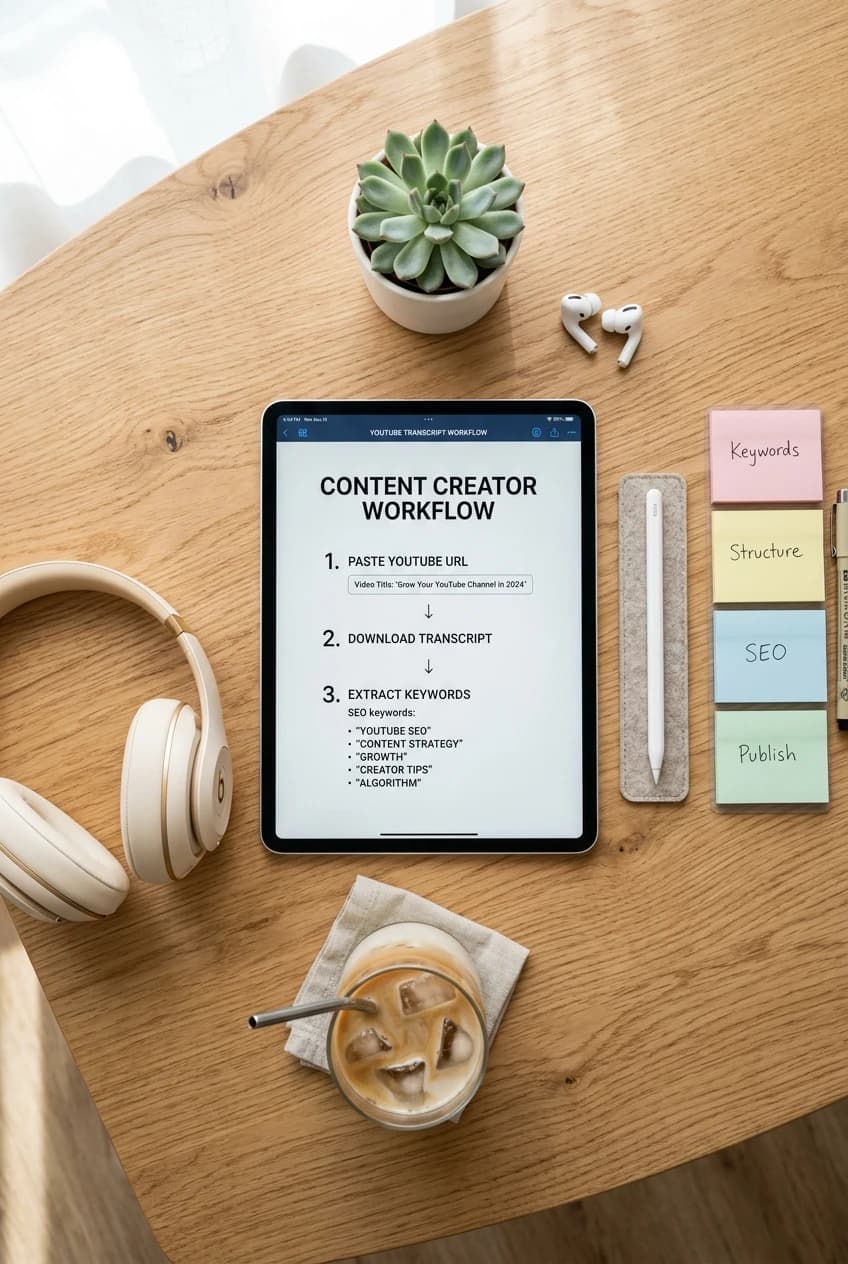
YouTube Transcript Downloader and Keyword Extraction Step-by-Step Blueprint
*Pin this graphic to your YouTube SEO, Content Strategy, or Video Production board on Pinterest to keep the full ranking sequence within reach during your next edit session.*
---
YouTube Transcript Keyword Research: How to Steal Competitor Traffic Using Video Dialogue
Most creators believe YouTube keyword research ends with typing phrases into the search bar to see autocomplete suggestions, or checking tag counts in VidIQ or TubeBuddy.
That approach barely scratches the surface. In 2026, YouTube's recommendation algorithm is primarily acoustic and semantic.
As detailed in foundational machine learning research on Deep Neural Networks for YouTube Recommendations and modern speech recognition benchmarks from OpenAI Whisper, Google does not rely on static metadata strings. YouTube transcribes audio automatically using neural automatic speech recognition (ASR) models. It processes the raw spoken audio into high-dimensional vector embeddings, mapping every spoken sentence into Google's Knowledge Graph.
This means the words spoken in your video carry up to 300% more topical weight than backend video tags.
   ┌─────────────────────────────────────────────────────────────┐
   │            HOW YOUTUBE PROCESSES SPOKEN TRANSCRIPTS         │
   └─────────────────────────────────────────────────────────────┘
                                  │
         ┌────────────────────────┴────────────────────────┐
         ▼                                                 ▼
  ┌──────────────┐                                  ┌──────────────┐
  │ Spoken Audio │                                  │ Neural ASR   │
  │ Video Stream │ ───────────────────────────────▶ │ Engine       │
  └──────────────┘                                  └──────────────┘
                                                           │
                                                           ▼
  ┌──────────────┐                                  ┌──────────────┐
  │ Search SERP  │                                  │ Entity & LSI │
  │ & AI Overviews◀──────────────────────────────── │ Knowledge    │
  │ (Citations)  │                                  │ Graph Vector │
  └──────────────┘                                  └──────────────┘
The Entity Co-Occurrence Secret
When a video ranks #1 for a competitive term like *"YouTube monetization"*, it is not ranking simply because the creator typed *"YouTube monetization"* in the title.
It ranks because the creator's audio transcript contains high Entity Salience and natural Entity Co-Occurrence. Throughout their 10-minute video, the creator naturally spoke related semantic entities:
- *AdSense threshold*
- *Watch hours requirement*
- *CPM by country*
- *Copyright claim vs strike*
- *Tax information W-8BEN*
- *Advertiser-friendly content guidelines*
When YouTube's neural ranker hears these co-occurring terms clustered together, its confidence score spikes: *"This video is a comprehensive, authentic resource on YouTube monetization."*
How to Reverse-Engineer Competitor Transcripts in 4 Steps
You can leverage this algorithmic reality to engineer top-ranking scripts before you ever hit record on your camera:
- Identify the Top 3 Search Leaders: Search your target query in YouTube and identify the top three organically ranking videos (excluding paid ads).
- Extract All Three Transcripts: Paste each video URL into our YouTube Transcript Downloader and download their clean plain text transcripts.
- Run Frequency Analysis: Paste the three transcripts into our keyword analyzer or run a simple word-frequency scan. Note down:
- What subtopics did all three creators address?
- What specific technical terms or tools did they mention by name?
- What phrasing did they use during the first 45 seconds of their opening hooks?
- Build a Superior Script Architecture: Write your video script ensuring you cover every entity your competitors covered, plus address at least two critical angles they missed.
- State your primary keyword clearly in your opening 15 seconds.
- Weave in the co-occurring entities naturally throughout your explanation.
- Check competitor backend tags with our YouTube Tag Extractor and generate matching semantic tags using our YouTube Tag Generator to complete your metadata package.
- Cross-reference with our comprehensive guide on YouTube Keyword Research Tools (2026) to confirm commercial search volume and estimated CPC before filming.
---
5 Critical Transcript Mistakes That Silently Damage Channel Reach
Even veteran YouTube creators and digital agencies make fatal errors when handling video transcripts. Avoid these five critical traps:
1. Leaving Auto-Generated Caption Typos Uncorrected
While YouTube's speech recognition has improved drastically, it routinely misinterprets brand names, software tools, acronyms, and industry terminology (e.g., transcribing *"AdSense"* as *"add sense"*, or *"DaVinci"* as *"the vinci"*).
When your transcript contains misspelled entities, YouTube's NLP models fail to map your video to the correct topical cluster. Always open YouTube Studio, inspect the automatic captions, and correct domain-specific keywords before publishing. The W3C Web Accessibility Guidelines for Video Captions stress that precision in closed captions is fundamental to both human accessibility and algorithmic comprehension.
2. Dumping Raw Timestamped Text into Blog Posts
Never copy a raw transcript with timestamps directly onto your blog or website. A wall of disjointed dialogue littered with timecodes like `01:23 Look at this 01:25 and then click here` causes an atrocious user experience. Human readers bounce within seconds, sending devastating dwell-time signals to Google Search. Always clean and restructure transcripts into proper prose before publishing.
3. Burying the Vocal Hook Until 3 Minutes In
Because YouTube transcribes your speech chronologically, the first 30 to 45 seconds carry disproportionate relevance weighting. If you spend the first two minutes rambling about your morning coffee or asking viewers to subscribe before introducing the topic, you dilute your video's semantic focus. Deliver your core keyword and promise within your very first sentence.
4. Overlooking International Closed Captions
More than 65% of an average channel's viewership originates from non-English-speaking regions. When you upload a clean English SRT file, YouTube's auto-translation engine can translate your captions into Spanish, Portuguese, Hindi, and German with 95%+ grammatical accuracy. This single step unlocks millions of international search impressions without re-filming a single frame.
5. Blindly Plagiarizing Competitor Video Scripts
Extracting competitor transcripts is for competitive intelligence and topic gap analysis, not wholesale copyright theft. Copying a creator's exact spoken script line-for-line violates copyright law and YouTube's Spam & Deceptive Practices policies. Use transcripts to discover what questions need answering, then deliver your own original perspective, testing data, and personal charisma.
---
Your Pre-Publishing Video Transcript Checklist
Before releasing your next video, verify every item on this operational checklist:
- [ ] Spoken Opening Hook Verified: Target query pronounced clearly in the opening 15–30 seconds of audio.
- [ ] Topical Entity Density Checked: 5 to 10 contextual co-occurring entities naturally spoken during the tutorial.
- [ ] Auto-Captions Audited: Technical terms, software names, and brand acronyms corrected inside YouTube Studio.
- [ ] Clean SRT Backup Exported: Stored on local drive via our YouTube Transcript Downloader for translation and video editor archiving.
- [ ] Google Key Moments Chapters Added: Timestamps starting at `0:00` formatted with our YouTube Timestamp Generator.
- [ ] 5-Zone Description Aligned: Description synopsis generated using our YouTube Description Generator matching spoken dialogue.
- [ ] Text Repurposed: Clean plain text converted into companion blog post or newsletter issue using our AI prompting framework.
- [ ] SEO Compliance Verified: Complete review passed against our master YouTube SEO Checklist 2026.
---
Authoritative References & Technical Documentation
For creators, developers, and SEO analysts seeking deeper documentation on audio indexing and video accessibility standards, explore these authoritative resources:
- Google Search Central: Video SEO Best Practices — Official Google documentation detailing how Google indexes video content, structured data schemas, and Google Key Moments on the SERP.
- YouTube Official Help Center: Video Transcripts and Closed Captions — YouTube's verified guidelines for creating, uploading, and editing subtitles and automatic speech recognition files.
- W3C Web Accessibility Initiative (WAI): Audio & Video Captions Guidelines — International accessibility standards outlining synchronized caption standards for universal accessibility.
- Google Research: Deep Neural Networks for YouTube Recommendations — Seminal technical paper explaining how candidate generation, video embedding layers, and engagement velocity dictate ranking positions.
- OpenAI Whisper: Robust Speech Recognition via Large-Scale Weak Supervision — Comprehensive research publication detailing state-of-the-art transformer speech recognition and automated audio transcription.
Related guides on this topic: YouTube Algorithm Guide · YouTube SEO Checklist 2026 · Algorithm Ranking Factors 2026 · Title Generator · YouTube Title Generator Guide.
Topics
❓Frequently Asked Questions
How do I download a YouTube transcript for free without software?
You can download any YouTube transcript for free using either YouTube's native 'Show transcript' button under the description fold or by pasting the URL into our free web-based YouTube Transcript Downloader. Our tool strips out timestamps automatically with one click, letting you export raw text or SRT files without installing browser extensions or paying subscription fees.
Can I extract YouTube subtitles with timestamps for video chapters?
Yes. Our YouTube Transcript Downloader allows you to toggle timestamps on or off. When timestamps are enabled, each sentence is paired with its exact start timecode (e.g., [01:45]). You can download this format as a TXT file or standard SRT subtitle file to generate YouTube video chapters and qualify for Google Key Moments.
What is YouTube transcript keyword research and how does it work?
YouTube transcript keyword research is the process of extracting and analyzing the spoken dialogue of top-ranking competitor videos. Because Google and YouTube use automatic speech recognition (ASR) to index video topics, mining spoken transcripts reveals the exact semantic entities, secondary keywords, and LSI terms that neural search algorithms reward.
Does this transcript downloader work on YouTube Shorts and mobile devices?
Yes. The downloader is fully responsive and works on iOS Safari, Android Chrome, tablets, and desktop browsers. You can paste any standard YouTube video URL, short youtu.be link, or YouTube Shorts link to extract dialogue in seconds.
Is downloading and repurposing YouTube transcripts legal under copyright law?
Downloading transcripts for research, private study, accessibility, or competitive SEO analysis falls squarely under Fair Use principles. However, you should never publish an entire creator's verbatim transcript as your own blog post without substantial commentary, transformative analysis, or licensing, as raw scripts remain the intellectual property of the video creator.
Free tools for this topic
Apply what you just read with free creator tools — no signup required.