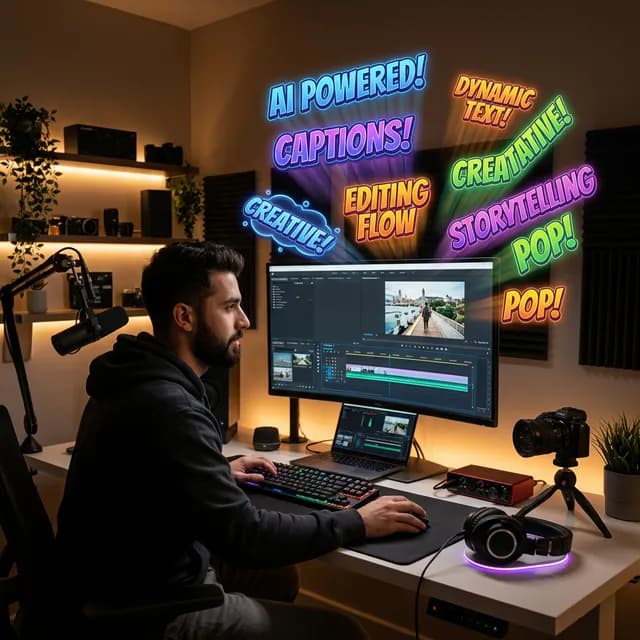
We need to talk about why you clicked on this. You didn't just wake up wanting to add more friction to your editing pipeline. You're here because you noticed the same trend everyone else in the creator economy has noticed over the past two years:videos without engaging, animated captions are losing the retention battle.
Whether you are creating high-impact YouTube Shorts, talking-head educational content, or long-form video essays, the way viewers consume content has shifted. People watch with the sound low, they watch in public, and most importantly, they expect rapid visual stimulation.
But manually typing out SRT files or keyframing bouncy text in Premiere Pro is a nightmare. That's exactly why an ai subtitle generator youtubecreators can actually rely on is no longer a luxury. It's an infrastructural necessity.
In this complete 2026 guide, we are looking past the marketing fluff. We tested the leading AI transcription and captioning engines to figure out which ones actually save time, which ones have the best animated templates, and which ones justify their subscription cost.
Important
Why Subtitles Are an SEO & AEO Necessity:
Generative Engine Optimization (GEO) and Answer Engine Optimization (AEO) rely heavily on textual context. YouTube's backend algorithm, along with Google Discover, 'reads' the spoken words in your video. While YouTube does auto-generate basic closed captions, hardcoding accurate, engaging subtitles significantly boosts viewer retention—which is the strongest algorithmic signal you can send.
---
The Economics of Transcription: Why Pay for AI?
Before we dive into the specific tools, let's address the elephant in the workspace: *doesn't YouTube have free auto-captions?*
Yes, it does. YouTube’s Automatic Captions are excellent for basic accessibility. However, they lack styling, they misspell brand names, and they don't capture the rapid, visually engaging "Hormozi-style" pacing that keeps viewers from swiping away on Shorts or clicking off early on standard videos.
When you invest in a dedicated automatic caption generator, you aren't paying for the words. You are paying for the workflow speed and the animation presets.
---
1. Descript: The Best All-in-One Workflow
If you want the most seamless integration of transcription and editing, Descript is the undisputed king. We recently did a complete Descript YouTube Editing Guide that breaks down their entire text-based editing model, but their caption engine deserves its own spotlight.
How the Captions Work:
Because Descript already transcribes your entire video to create its text-based timeline, adding captions is literally a one-click process. You hit 'T' to add a title, select *Captions*, and Descript instantly overlays perfectly timed, word-by-word highlighted text on your video.
The Pros:
- Zero synchronization drift:The words always match the audio perfectly because the edit is driven by the text.
-Customizable templates:You get karaoke-style highlights, custom brand colors, and clean font management.
-Correction is instant: If the AI mishears a technical term, you just right-click, correct the text, and the on-screen caption updates instantly.
The Cons:
- Not perfectly tailored for vertical 9:16 'flashy' templates if you only do Shorts.
- Desktop application dependency for the heaviest features.
Best For: Long-form educators, podcast-to-YouTube creators, and those who already want a text-based non-linear editor.
---
2. CapCut Pro: Best for YouTube Shorts & Flashy Animations
CapCut has completely absorbed the mobile-first editing ecosystem. While it started as a basic mobile app, CapCut Pro on desktop is now a remarkably powerful AI editing suite.
How the Captions Work:
You import your video, click Auto Captions, and within seconds, CapCut generates an SRT track. The true magic, however, lies in their *Templates* tab.
The Pros:
- Incredible animation variety:Want that bouncy, colorful, emoji-filled text style popularized by Alex Hormozi and MrBeast? CapCut has it built-in with one click.
-Auto-Emojis:CapCut's AI can analyze the sentiment of the sentence and automatically insert relevant emojis.
-Speed: The cloud-based AI processing is incredibly fast, even on older hardware.
The Cons:
- The best caption templates are hard-locked behind the paid 'Pro' subscription.
- Can occasionally struggle with dense technical jargon or heavy accents.
Best For: YouTube Shorts creators, vloggers, and anyone optimizing for raw visual retention.
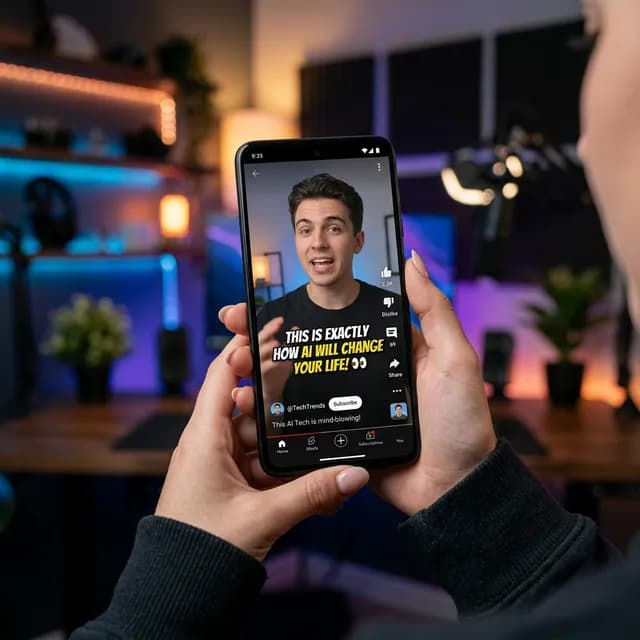
A close-up of a modern smartphone showing vertical video with highly stylized, auto-generated captions overlaid, highlighting CapCut's interface in a creative studio setting
*Vertical video formats require text that sits in the 'safe zones' to avoid being covered by UI elements. Modern AI generators handle this automatically.*
---
3. Opus Clip: Best for Repurposing Content
Opus Clip takes a completely different approach. It isn't just an ai subtitle generator for youtube; it's an AI *repurposing* engine.
How the Captions Work:
You paste a link to your existing long-form YouTube video. Opus Clip's AI watches the video, identifies the most engaging hooks, cuts the video into 15-60 second Shorts, and automatically applies dynamic, animated captions to all of them at once.
The Pros:
- Unrivaled speed for batching:It handles the edit, the crop, and the captions simultaneously.
-AI Virality Score:It ranks the generated clips based on the likelihood of algorithmic success.
-Caption safe zones: The AI knows exactly where the TikTok, Reels, and Shorts UI buttons are and avoids placing text there.
The Cons:
- Not designed for creating captions on your main, long-form horizontal videos.
- Give up some granular control over precise cut timing.
Best For: Creators engaging in heavy YouTube Content Batching who want to spin one podcast episode into thirty Shorts without hiring a dedicated editor.
---
4. SubMagic: The Premium Browser-Based Tool
SubMagic positions itself directly as the premium AI caption tool for short-form video. It is entirely browser-based, which makes it platform-agnostic.
The Pros:
- Hollywood-level animation presets:The text animations, color shifts, and b-roll integration are noticeably higher quality than standard CapCut templates.
-Auto-B-Roll:The AI can read the transcript and automatically insert relevant B-roll stock footage behind your captions to visually emphasize points.
-Auto-Zoom: It adds subtle artificial camera movements that sync with the speaker's vocal intensity.
The Cons:
- Distinctly tailored for vertical content; horizontal long-form features are limited.
- Subscription pricing can feel steep if you aren't monetizing yet.
---
How to Maximize Captions for YouTube SEO and Retention
Adding text on screen is only half the battle. If you want these tools to actually grow your channel, you need to align them with YouTube's ranking factors.
1. Hardcode for Retention, SRT for Search
When you hardcode captions (burn them directly into the video file), you ensure that mobile viewers watching with sound off still consume your content. This drives up Average View Duration (AVD), which is the king metric for the YouTube algorithm.
However, you should *also* export the plain `.srt` file from your AI tool and upload it manually to YouTube's "Subtitles" tab. According to major industry studies like Backlinko's YouTube Ranking Factors, search engines crawl this uploaded text file to understand the exact context of your video, feeding directly into Answer Engine Optimization (AEO).
2. The Title-Caption Alignment Strategy
If your video is about "budget microphones," that exact phrase needs to appear in your thumbnail, your spoken audio in the first 15 seconds, your on-screen AI captions, and your metadata. Use our YouTube Title Generator to nail the phrasing, then map that exact phrasing into your scripted, closed-captioned hook. The algorithm rewards consistency.
3. Keep Text Length Short
The biggest mistake new creators make with AI generators is leaving the default "sentence length" setting on. Viewers cannot read 12 words on screen at once while also watching your face. In your AI generator settings, limit the word count to 3 to 5 words per screen. This forces the text to change rapidly, creating visual kinetic energy that resets the viewer's attention span.
---
The Verdict: Which AI Subtitle Tool Should You Choose?
If I had to build a fully optimized YouTube workflow in 2026, here is the setup I would recommend:
- For Main Channel Long-Form Videos:UseDescript. The integration of the transcript into the editing timeline is too powerful to ignore, and the clean, customizable subtitle overlay guarantees your tutorials and essays are accessible and engaging.
- For Shorts and Fast-Paced Clips:UseCapCut Proif you want total editorial control, orOpus Clip if you prioritize volume and speed over granular perfection.
The reality is that relying on manual typography is a creative bottleneck. Every hour you spend keyframing text is an hour you aren't researching better topics or engaging with your audience (which, as we know from tracking YouTube Super Thanks Earnings, is where the real community building happens).
Pick the tool that fits your format, turn on the fast-paced templates, and watch your retention graph flatten out. The AI does the heavy lifting; you just need to bring the content.
Topics
❓Frequently Asked Questions
Do AI subtitle generators misspell technical words often?
Most modern AI subtitle generators powered by models like Whisper or proprietary cloud engines boast roughly 95-98% accuracy. However, they can occasionally struggle with highly specific industry jargon or brand names. Top tools like Descript and CapCut allow you to easily find and replace these terms across the entire video in a few clicks.
Are hardcoded subtitles better than YouTube closed captions (CC)?
They serve different purposes. Hardcoded (burned-in) subtitles guarantee the viewer sees the text exactly how you styled it, complete with animations and emojis, which violently increases viewer retention on mobile and Shorts. YouTube's closed captions (CC) are toggleable and better for pure accessibility and direct SEO metadata crawling. The best practice is to do both: hardcode dynamic captions for engagement and upload the pure .srt file for search optimization.
Can I use CapCut on desktop to generate AI subtitles?
Yes, CapCut Pro has robust desktop applications for Windows and Mac. The auto-captioning feature and dynamic templates work identically to the mobile version but offer the precision of a mouse and keyboard timeline for faster formatting.
Do animated captions actually increase YouTube Shorts retention?
Yes, significantly. Data across the creator economy consistently shows that dynamic, word-by-word highlighted captions reset the viewer's attention span. By giving the eye something kinetic to track, it lowers the drop-off rate, particularly in the critical first 3-5 seconds of a short-form video.
Is there a free AI subtitle generator for YouTube?
YouTube Studio offers a completely free auto-captioning service that generates standard SRT text. While not animated or visually customizable, it is highly accurate for English. Tools like CapCut also offer localized free tiers, though their best, high-engagement animated templates are usually locked behind standard paid subscriptions.
Free tools for this topic
Apply what you just read with free creator tools — no signup required.