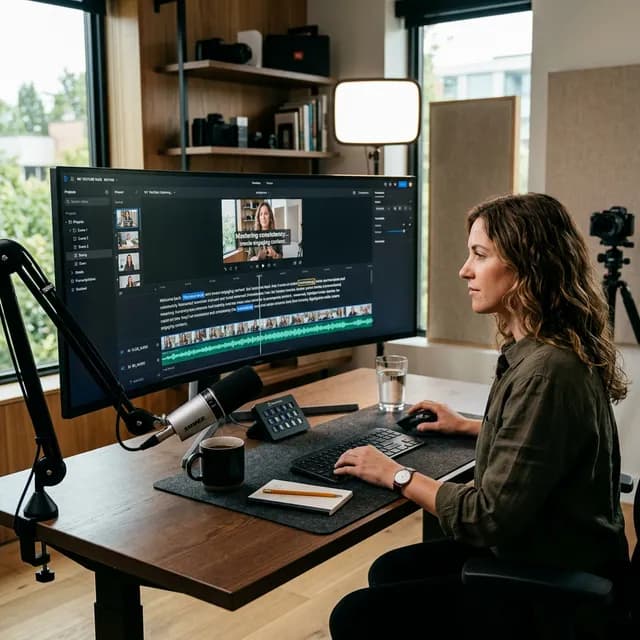
I want to tell you about the first time I deleted a word from a transcript and watched an entire 4-second section of video disappear.
It sounds like a small thing. But if you've spent years manually dragging razor cuts on a timeline — zooming in, listening, scrubbing back, cutting, checking — the first time you experience text-based editing in Descript, it genuinely feels like a cheat code.
That's what this guide is about. Not just the features, but the *shift in how you think about video editing* that descript youtube editingdemands — and rewards.
Important
What Makes Descript Different:
Every other video editor starts with video. Descript starts with words. It transcribes your footage automatically, and your edit happens on the transcript. That single architectural decision changes everything about how fast you can work.
---
What Is Descript, and Why Do YouTubers Use It?
Descript is an AI-powered video and podcast editing platform. It combines a transcription engine, a non-linear video timeline, screen recording, a teleprompter, and an AI voice synthesis tool (called Overdub) inside a single application.
It launched initially as a podcast editing tool, but the creator community quickly realized that its transcript-first approach was equally transformative for video. As of 2026, it's a go-to tool for interview-based channels, talking-head educators, vloggers, and any creator whose raw footage contains a lot of speech that needs to be cut.
Here's the thing about Descript that most tutorials miss: it doesn't completely replace a timeline editor for complex productions.If you're doing cinematic YouTube videos with dramatic B-roll sequences, dynamic color grades, and complex multicam edits, you'll still want DaVinci Resolve or Premiere Pro for the finishing touches.
But for the 80% of the editing process that involves removing dead air, cutting filler words, trimming stumbles, and cleaning up pacing? Descript is three to five times faster than any other tool, and that's not marketing language — it's the lived experience of the creators who've switched.
---
Getting Started: Your First Descript Project
Before we get into features, let's walk through importing footage and starting a project so everything makes sense in context.
Step 1: Upload or Import Your Raw Footage
Open Descript and create a new project. You have three import options:
-Upload from your computer— drag and drop your MP4, MOV, or audio files directly
-Import from Google Drive or Dropbox— connect cloud storage and pull files without downloading locally
-Record directly in Descript — if you're doing a screen recording or a remote interview, Descript's built-in recorder captures everything and transcribes it in real time
For most YouTubers, you'll be uploading raw camera footage from your memory card. Upload your main talking-head clip first.
Step 2: Transcription Happens Automatically
The moment your file finishes uploading, Descript begins transcribing it. For a 10-minute video, transcription takes roughly 2–4 minutes depending on your connection speed and audio quality. The result is an accurate, time-synced transcript where every word is clickable and corresponds to a specific frame in your video.
Descript supports transcription in dozens of languages, but English accuracy is exceptional — typically 95–98% accuracy with clear audio. If your audio has background noise or a strong accent, accuracy drops slightly, but you can always correct individual words by clicking them.
Step 3: Read the Transcript Like a Document
This is the interface shift you need to accept. Your edit begins in the transcript pane, not the video timeline. Read through your transcript and you'll immediately see things you'd normally miss when scrubbing video:
- Sentences that run on too long
- Tangents that dilute your main point
- Repeated explanations that could be cut
- The exact moment you lose your train of thought
When you see any of these, simply highlight the offending text and press delete. The corresponding video is removed instantly.
---
Descript's Core Features for YouTube Creators
Text-Based Editing: Delete Words, Delete Video
This is the headline feature and it never stops feeling efficient. When you delete text in the transcript, the video for that section is cut. When you highlight a chunk of text and press delete, you're making a multi-second cut without touching the timeline.
Practical example:You're filming a tutorial and you explain a concept clearly in two sentences, but then you second-guess yourself and say, "Actually, let me rephrase that..." followed by two more sentences that say exactly the same thing. In timeline editing, you find this moment, zoom in, make two cuts, and trim. In Descript, you just read it in the transcript, highlight the redundant half, and delete. Twenty seconds of editing work becomes three seconds.
For long-form YouTube content with lots of talking-head footage, this difference compounds into hours saved per video.
Filler Word Removal: One Click to Cut Every "Um" and "Uh"
Here's a feature that sounds gimmicky until you use it: Descript can detect and remove all your filler words in a single action.
Go to theEditmenu and selectRemove Filler Words. Descript will scan the entire transcript and highlight every instance of common fillers: "um," "uh," "like," "you know," "sort of," "kind of," and any custom phrases you define.
You can then review each one individually and decide which to remove — or you can select all and delete them at once. For most creators, a first-pass removal of all detected fillers is perfectly safe, because Descript's detection is accurate enough that false positives are rare.
The time savings here are meaningful. If you're the type of creator who says "um" forty times in a 10-minute video, that's roughly 80–120 seconds of footage. Remove all of them in under 30 seconds.
Pro Tip
The Filler Word Threshold Setting: In Descript's filler word detection, you can set a minimum duration threshold. This means only filler words longer than, say, 0.3 seconds get flagged. Short, nearly-inaudible fillers often don't need to be removed — they contribute to natural speech rhythm. Focus on removing the long, noticeable ones.
Overdub: AI Voice Cloning and Audio Correction
Overdub is one of Descript's most talked-about capabilities, and also the most misunderstood.
What it actually does: Overdub lets you train Descript on your voice by recording about 10 minutes of sample audio. After training (which takes a few hours), Descript can synthesize new audio in your voice from text. You type what you want to say, and the AI speaks it in your voice.
The primary use case for YouTubersis not "never record again." It'scorrecting mistakes in recorded audio without re-recording. If you said "in the last video" when you meant "in the next video," you don't need to re-film or do a voice-over patch. You just type the correction in Descript, and Overdub generates the correct phrase in your voice, seamlessly inserted into the timeline.
This is particularly valuable for:
- Fixing factual errors discovered after filming
- Updating evergreen tutorial videos with new information
- Correcting mispronounced names or technical terms
What Overdub is not: A replacement for genuine recorded performance. The AI voice is good — genuinely impressive, often indistinguishable for short phrases — but it lacks the tonal variety and emotional nuance of your real recordings. Use it as a correction tool, not a content generation engine.
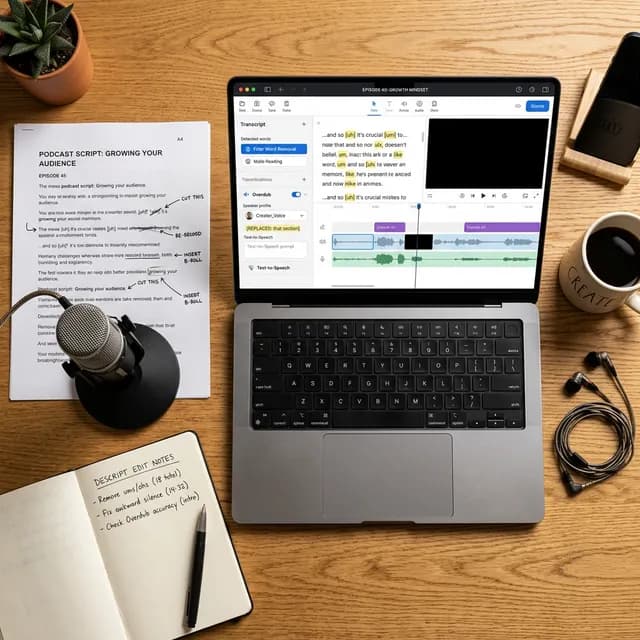
A creator's desk with a laptop showing Descript's AI Overdub and filler word removal interface, surrounded by a USB microphone, printed script pages, and editing notes
*Descript's Overdub feature works best as a precision correction tool — letting you fix words and phrases in your recording without a re-shoot.*
Green Screen and Background Replacement
Descript includes a built-in background removal tool that works directly in the editor without needing a physical green screen. In the video properties panel, enable Background Removal on any clip, and Descript applies an AI mask around your subject.
You can then replace the background with a solid color, a gradient, a custom image, or another video clip. For talking-head YouTubers who film in front of a cluttered wall or a plain white background, this is an immediately useful feature — you can create a clean, professional-looking backdrop without any studio work.
The edge masking quality is solid for hair and structured clothing. Very fine hair strands can sometimes show artifacts, particularly if your clothing color is similar to the background. Filming against a consistently lit, single-color wall gives the best results.
Screen Recording with Synchronized Captions
Descript's built-in screen recorder captures screen, webcam, and microphone audio simultaneously, delivering a synced transcript from the first moment you start recording.
This is particularly valuable for tutorial and software review YouTubers. Instead of recording in another tool, importing the file, and transcribing separately, you record directly in Descript and your transcript is ready by the time you finish recording.
Combine this with Descript's screen annotation tools (which let you highlight clicks, spotlight the cursor, and add callout boxes), and you have a complete software tutorial workflow inside a single application.
---
Descript Editing Workflow for YouTube: Step by Step
Here is the exact workflow I recommend for YouTube creators using Descript as their primary editor:
Phase 1: First Pass — Macro Editing
After your footage uploads and transcribes, read through the transcript from top to bottom. On this first pass, only remove large sections — entire tangents, restarts from the top of an explanation, or content you know won't be in the final video.
Don't micromanage individual words yet. The goal of the first pass is to cut 20–30% of the total running time quickly.
Phase 2: Second Pass — Filler Words and Pacing
Run the automatic filler word removal. Then read the transcript again, this time focusing on pacing. Look for:
- Long pauses between sentences (these appear as white space in the transcript timeline)
- Over-explained concepts that repeat the same point in multiple sentences
- Transitions that ramble before landing on the point
Highlight and delete these. This pass typically reduces your video by another 10–15%.
Phase 3: B-Roll Layer
Once your talking-head track is clean, switch to the timeline view and add your B-roll footage. Descript handles B-roll as an overlay layer — drag video clips over your transcript timeline to cover sections of the talking-head footage.
For YouTube tutorials, I recommend B-roll for:
- Any moment you reference a tool, website, or visual concept
- Any transition between major sections
- The opening 10–15 seconds to establish visual context
Phase 4: Titles, Chapters, and Captions
Descript can export a captions file (SRT) directly from your transcript — one of the best implementations of captions in any editing tool because the time-sync is exact. Upload this directly to YouTube after publishing.
For chapter markers, Descript lets you insert scene boundaries (called "scenes") in your transcript view. Each scene boundary becomes a potential chapter title. Export these timestamps and add them to your YouTube description manually, or use them in the transcript.
Phase 5: Export and Final Polish
Export from Descript at 1080p or 4K. For most YouTube videos, the MP4 H.264 export from Descript is perfectly YouTube-ready with no re-processing needed.
If your video requires complex color grading or audio mastering, export from Descript, then bring it into DaVinci Resolve for a finishing pass. Many professional creators use this hybrid workflow.
---
Descript vs. Other YouTube Editing Tools
How does Descript compare to the alternatives most YouTube creators already know?
Descript vs. Adobe Premiere Pro
Premiere is the industry standard for professional video post-production. It handles complex multicam work, advanced color science, and tight audio mixing with more control than Descript.
But for typical talking-head YouTube content, Premiere's timeline approach is far slower. You don't get text-based editing, and removing filler words requires manual cuts or third-party plugins. Most YouTube educators who've switched to Descript do not go back to Premiere as their primary editor for speech-heavy content.
Descript vs. CapCut
CapCut is optimized for mobile short-form content and YouTube Shorts. Its template system, auto-captions, and trending effects pipeline make it the best choice for Shorts creation. For long-form talking-head videos, CapCut's timeline is slow compared to Descript's transcript-based approach. They serve different content types.
Descript vs. DaVinci Resolve
DaVinci is the best free professional editor available, with unmatched color grading tools. As mentioned, many creators use Descript for the editing phase and DaVinci for color and final polish. They're not really competitors — they're complementary.
To understand how creators are editing YouTube Shorts specifically, our guide on YouTube Shorts Best Editing Apps & Techniques covers the mobile-first editing ecosystem in detail.
---
Descript Pricing: Is It Worth It for YouTubers?
As of 2026, Descript offers three main tiers:
Free Plan: Transcription-based editing with a 1-hour monthly transcription limit. Overdub is not available. Sufficient for creators just starting to explore the tool.
Creator Plan (~$12/month): 10 hours of transcription monthly, Overdub for voice correction, background removal, and full export resolution. This is the sweet spot for solo YouTubers publishing 2-4 videos per month.
Business Plan (~$24/month):Unlimited transcription, team collaboration features, custom AI voice cloning with extended training data, and priority processing. Worth it for channels uploading multiple long-form videos weekly or editors working with clients.
For most solo creators, the Creator Plan pays for itself in the first week through time saved on a single long-form edit.
Note
Descript Pricing Tip:Descript frequently offers annual billing discounts (often 30–40% off monthly pricing). If you're committing to Descript as your primary editor, the annual plan is meaningfully cheaper over a year.
---
5 Pro Tips for Descript YouTube Editing
1. Use the "Correct" Feature for Quick Word Fixes
Right-click any word in the transcript and selectCorrect. This opens a small edit box where you can change the word or phrase that was transcribed. It's faster than typing in the timeline and useful for fixing transcription errors without deleting and retyping entire sections.
2. Record Your Next Video in Descript Directly
If your content includes screen recordings, switch to Descript's built-in recorder entirely. The immediate transcription benefit alone justifies the switch, and you'll have a fully editable, transcribed project from the moment you stop recording.
3. Use Scene Markers as a Rough Cut Map
Before editing, mark where each main section of your video begins using scene markers. This gives you a visual map of your content structure in the transcript view, making it much easier to do large macro cuts quickly.
4. Export a Separate Audio Track for Podcasting
If your YouTube content works in audio-only format (interviews, commentary, education), export the cleaned audio from your Descript project as an MP3 or WAV. You've already cleaned the audio during video editing — repurposing it as a podcast episode is essentially free additional content.
5. Combine Descript with Your YouTube SEO Workflow
Editing faster gives you more time to invest in what actually grows channels: keyword research, title testing, and thumbnail iteration. Use the time you save with Descript to run better experiments on your metadata. Our YouTube Tag Generator and YouTube Title Generator are the tools to pair with Descript once your editing speed increases.
---
Internal Resources for Complete Channel Optimization
Descript handles the editing phase of your workflow. Here's how it connects to the rest of what a growing YouTube channel needs:
- Content scripting:Before you walk into a Descript recording session, you need a strong script. The AI Scriptwriting Tools for YouTube guide covers how to build your first draft in minutes using AI tools, then refine it in your own voice before recording.
-SEO optimization:After you edit in Descript, your video needs proper metadata. The YouTube SEO Checklist 2026 is the copy-paste system for titles, descriptions, tags, and chapters.
-Thumbnail creation:Canva's AI tools are the fastest path to professional thumbnails after your Descript edit is exported. The Canva AI Tools for YouTube Tutorial covers the entire thumbnail workflow.
-Earnings tracking:As your efficiency increases with Descript, your output volume grows. Track how more videos affect your earnings with the YouTube Earnings Calculator.
---
External Resources and Authoritative References
For further reading on AI-powered video editing and Descript specifically:
-Descript Official Documentation— The most current source for feature updates, pricing information, and platform-specific tutorials. Descript releases updates frequently; the official docs always reflect the latest version.
-Descript YouTube Channel— Descript's own team publishes regular feature walkthroughs, creator case studies, and editing technique demonstrations. An underused resource.
-Backlinko: YouTube Ranking Factors— Understanding what YouTube's algorithm rewards helps you know where to focus editing energy. Better retention through tighter edits (which Descript enables) directly affects algorithmic distribution.
-Creator Economy Report by ConvertKit— Annual research on creator workflows, tool adoption, and productivity. The editing tools section documents how text-based editing adoption has grown year-over-year among full-time creators.
-Nieman Lab: AI in Media Production— For creators interested in how AI-generated voice (like Overdub) intersects with editorial ethics and audience disclosure, Nieman Lab provides the most rigorous journalism on the topic.
---
The Honest Bottom Line on Descript
Descript is a genuinely transformative tool for talking-head and interview-based YouTube content. If 60% or more of your footage involves someone speaking to camera, the transcript-based editing model will make you significantly faster.
It's not the right tool for every channel. Highly cinematic productions, narrative documentaries, or complex multicam livestream edits will still require a traditional NLE for significant portions of the work.
But for tutorial creators, educators, podcast-to-YouTube creators, and vloggers who spend the majority of their editing time removing dead air and cleaning up speech rhythm —descript youtube editingisn't just a workflow change. It's a competitive advantage. The creators who adopted it early are consistently producing more videos, with better pacing, with lower editing overhead.
That asymmetry compounds over time. A creator editing two videos a week at three hours per video has 24 extra hours per month compared to someone still stuck on a traditional timeline. That's a month of extra content every four months.
Pick up the free plan, import your worst raw footage — the messy, fumbling kind you usually dread editing — and see what the transcript looks like. The moment you delete your first "um" and watch the video update in real time, you'll understand why creators who switch to Descript rarely go back.
Topics
❓Frequently Asked Questions
What is Descript and how does it work for YouTube editing?
Descript is an AI-powered video editing platform that uses a transcript-first approach. When you upload raw footage, Descript automatically transcribes all the speech. You then edit the video by editing the transcript text — deleting words or sentences from the transcript automatically removes the corresponding video. This makes editing speech-heavy YouTube content dramatically faster than traditional timeline editing, because you're reading and cleaning text rather than scrubbing through video.
How does Descript's Overdub AI voice feature work?
Descript Overdub lets you create an AI clone of your voice by recording approximately 10 minutes of sample audio. After training (a few hours), the AI can synthesize new audio in your voice from typed text. For YouTube creators, the primary use case is correcting mistakes — if you said something incorrect in your recording, you simply type the corrected text and Overdub generates it in your voice, seamlessly inserted into the timeline. It's best used as a correction tool, not a content generation replacement.
Can Descript remove filler words automatically?
Yes. Descript includes an automatic filler word detection and removal feature. Go to Edit → Remove Filler Words, and Descript scans your entire transcript marking every instance of 'um,' 'uh,' 'like,' 'you know,' and other customizable filler phrases. You can review each one individually or remove all detected fillers at once. For creators who use filler words frequently, this single feature can save 10–20 minutes of editing time per video.
Is Descript better than Adobe Premiere Pro for YouTube?
For talking-head and interview-based YouTube content, Descript is significantly faster than Premiere Pro because of text-based editing. For cinematic productions requiring complex color grading, multicam editing, and advanced audio mixing, Premiere Pro offers more granular control. Many professional YouTube creators use both: Descript for the primary edit (cutting speech, removing fillers, cleaning pacing) and Premiere Pro or DaVinci Resolve for the finishing work (color, titles, final audio mix).
How much does Descript cost for YouTube creators?
As of 2026, Descript offers a free plan with 1 hour of transcription per month — sufficient for exploring the tool. The Creator plan (approximately $12/month) includes 10 hours of transcription, Overdub, and full export resolution, which is suitable for most solo YouTubers. The Business plan (~$24/month) provides unlimited transcription, team collaboration, and enhanced AI voice features. Annual billing typically saves 30–40% over monthly pricing.
What types of YouTube channels benefit most from Descript?
Descript delivers the most value to channels where speaking talent is the primary content: tutorial creators, educators, online course instructors, interview-based channels, podcast-on-YouTube formats, tech reviewers, and talking-head vloggers. Channels that rely heavily on cinematic B-roll, gaming footage, or visual storytelling with minimal voiceover benefit less from Descript's transcript-first approach, though they can still use it for basic cuts and caption export.
Free tools for this topic
Apply what you just read with free creator tools — no signup required.