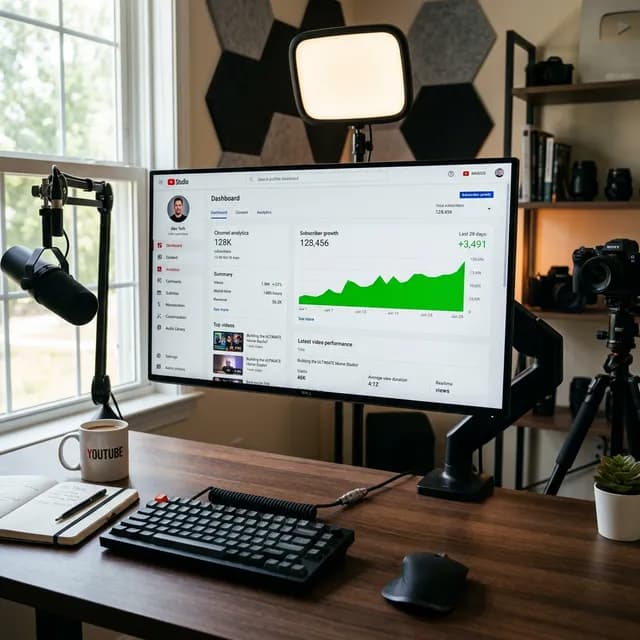
When you first log into YouTube Studio, it can feel like walking into a control room you've never been trained for. Dials everywhere, numbers on every panel, some sections you've clicked once and forgotten, and a nagging sense that you're probably missing something important — but you're not exactly sure what.
That feeling is extremely common. Most creators settle into a routine of checking one or two familiar metrics (views, maybe subscriber count) and ignoring the rest entirely. The problem with that approach is that the features you're skipping — the deeper analytics, the monetization dashboards, the audience heatmap — are often the ones that actually explain *why* your channel is growing or stalling.
This is a complete, section-by-section guide to the YouTube Studio dashboard in 2026. Not a surface-level tour. A real walkthrough of what each part actually does, what the numbers mean, and how to use them to make smarter content decisions starting today.
Important
Quick Navigation — YouTube Studio Sections Covered:
1. Dashboard— Your channel snapshot and quick alerts
2.Content— Managing, optimizing, and publishing your videos
3.Analytics— The seven sub-tabs and what each one tells you
4.Comments— How to manage, filter, and use comment data
5.Subtitles— Adding captions that improve watch time and reach
6.Monetization— Revenue reports, ad types, and pay period details
7.Customization— Channel branding, layout, and info sections
8.Audio Library— Finding safe music for your videos
How to Access YouTube Studio
The fastest way to get to YouTube Studio from any device is to go tostudio.youtube.com directly. You can also reach it by clicking your profile photo on YouTube.com and selecting "YouTube Studio" from the dropdown menu.
On mobile, the YouTube Studio app (a separate app from the main YouTube app) gives you access to most of the same features, though the analytics depth is slightly more limited on smaller screens. For anything involving detailed analysis or content optimization, desktop is where you want to be.
Section 1: The Dashboard — Your Channel at a Glance
The Dashboard is the first thing you see when you log in, and it's designed to give you a quick read on how your channel is performing right now without having to dig into deeper reports.
What you'll see on the Dashboard:
The top section shows a snapshot of your latest video's performance— specifically its views, watch time, and impressions in the first 24-48 hours, compared to your channel's typical video performance within that same window. This card is one of the most useful early-signal tools in all of Studio: it tells you within the first day whether a video is tracking above, at, or below your channel's historical baseline.
Below that, you'll find theChannel Analytics cardshowing key metrics for the past 28 days: views, watch time in hours, and new subscribers. These are surface-level numbers, but they give you directional awareness — is this month trending better or worse than the previous period?
TheNews and Inspirations paneldisplays YouTube's official announcements, policy updates, and feature news. Don't ignore this one entirely — YouTube occasionally surfaces significant policy changes here (monetization rule updates, new short-form features, creator program announcements) worth knowing about before they directly affect your channel.
Pro Tip
Dashboard quick habit: Every time you log into Studio, give the Dashboard 30 seconds before clicking elsewhere. The "latest video performance" card in those first 24-48 hours tells you whether your title and thumbnail are converting at a strong click-through rate or whether you may need to adjust your next upload's approach. It's faster than navigating directly to Analytics.
Section 2: Content — Managing Your Video Library
The Content section is where your entire video archive lives and where you'll spend most of your time doing active channel management.
The Content tab shows you:
- All uploaded videos (with status: Published, Unlisted, Private, Scheduled, Drafts)
- Thumbnail previews
- Visibility settings
- Date published
- Views, Comments, and Likes ratio
Uploading a new video: Click the Create button (the camera+ icon at the top right of Studio) to begin. The upload flow walks you through: title, description, thumbnail selection, playlist assignment, age restriction, monetization settings, and scheduling — in that order.
Editing existing videos: Click on any video's title or thumbnail to open its detail page. From there you can update the title, description, tags, thumbnail, end screens, cards, and monetization settings even after the video has been published. Many creators underuse this — going back to optimize titles and thumbnails on older videos that are still getting organic search traffic is one of the highest-leverage SEO moves available to any channel.
Use our YouTube Title Generator when editing older video titles — testing a fresh high-CTR title on a video that already has watch time signals behind it can meaningfully lift its search and browse placement.
Content filters: At the top of the Content tab, filter your library by: Live (stream archives), Shorts, Posts, and Podcasts. If your channel uses multiple formats, these filters save real time when managing a large video archive.
Bulk actions: Select multiple videos using the checkboxes on the left side of the Content table to delete a batch, change visibility, add to a playlist, or download a data export. For channels with hundreds of videos, bulk management is essential.
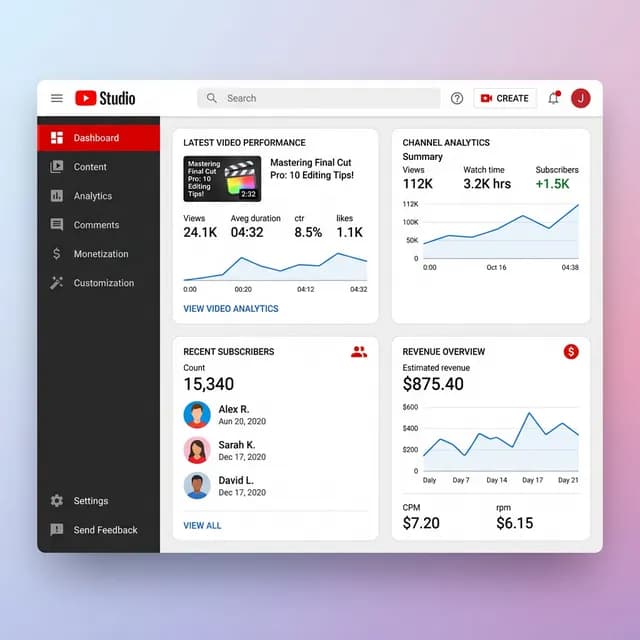
YouTube Studio dashboard sections guide showing navigation sidebar, analytics panels, content tab and monetization overview
*The YouTube Studio sidebar navigation covers eight core sections — each with sub-menus that reveal progressively deeper controls as you explore them.*
Section 3: Analytics — Where the Real Decisions Get Made
Analytics is the most powerful section in YouTube Studio and, for most creators, the most underused. There are seven sub-tabs here, each answering different questions about your content performance.
Overview Tab
The Overview tab gives you a summary graph of your key metrics — views, watch time, subscribers, and revenue (if monetized) — across a selectable time range. You can compare any of these metrics to a previous period using the "Compare to" dropdown.
The real value here: The comparison view lets you see whether your channel momentum is accelerating, stagnating, or declining relative to the same window last year or last quarter. Absolute view counts can be misleading — a channel with 100K views this month might actually be declining if it had 200K last month.
Content Tab (Inside Analytics)
This sub-tab breaks down performance by individual video. You can see which videos drove the most views, watch time, and subscriber gains in a given period. The sortable table is genuinely useful: sort by "Subscribers gained" per video to understand which content types convert viewers into subscribers most effectively.
A specific thing to look for:The "Impressions" column vs. the "Click-through rate" column side by side. High impressions with low CTR means YouTube is showing your thumbnail to many people who aren't clicking — a thumbnail or title problem. Low impressions means YouTube isn't showing your content broadly at all, which could be a keyword relevance issue or lack of external traffic signals.
Pair this insight with our YouTube Tag Generator to identify if your current keyword and tag strategy is properly aligned with what your best-performing videos are already doing.
Audience Tab
The Audience tab answers one core question: who is actually watching your content?
Key metrics here include:
- Age and gender breakdown of your viewers
- Geographic distribution at country and city level
- Devices used (mobile, desktop, tablet, connected TV)
-When your audience is on YouTube— the heatmap showing which days and hours your subscribers are actively watching
The "When your audience is on YouTube" heatmap is one of the most underrated features in all of Analytics. It shows, on average, when the people subscribed to your channel are most actively watching YouTube. Scheduling your next upload to go live at a peak time on this heatmap consistently improves early view velocity — the primary signal YouTube uses to decide how broadly to recommend your video.
Our dedicated guide on the best time to upload on YouTube covers this in detail with data-backed timing recommendations by niche.
Revenue Tab (Monetized Channels Only)
The Revenue tab shows your estimated earnings broken down by:
-Ad revenue— from ads shown before and during your videos
-YouTube Premium revenue— from Premium subscribers who watch your content
-Transaction revenue— Super Chats, Super Stickers, memberships, and Merch Shelf
-Estimated RPM— Revenue Per Mille (your earnings per 1,000 views)
-Estimated CPM — Cost Per Mille (what advertisers paid per 1,000 ad impressions on your content)
RPM vs. CPM trips up a lot of creators. CPM is the advertiser's rate. RPM is *your* actual earnings per thousand views, factoring in YouTube's 45% revenue share, ad fill rates, and watch time patterns.
To model your revenue potential at different view counts and niches, use our YouTube Earnings Calculator — it factors in niche CPM ranges to give you a realistic estimated range rather than a flat average.
Reach Tab
The Reach tab is where you understand how viewers are *finding* your content. It shows:
- Impressions— How many times YouTube showed your thumbnail to users
-Click-through rate (CTR)— The percentage that resulted in a click
-Views— Total views from those clicks
-Watch time— Total watch time from those views
The progression from impressions to CTR to views to watch time is your complete acquisition funnel. Most significant drops happen at one of two points: impressions to CTR (a thumbnail or title problem) or views to watch time (a content hook or structure problem).
TheTraffic Sourcesbreakdown shows exactly where your views came from: YouTube Search, Suggested Videos, Browse Features, External sites, Notifications, and more. If a disproportionate share of traffic comes from Suggested Videos, YouTube's algorithm sees your content as closely related to a popular topic — a growth signal worth leaning into.
Engagement Tab
Engagement shows watch time patterns at both the channel and individual video level. The key metric here isAverage View Duration (AVD)— the average number of minutes viewers watch before leaving.
Important
Why AVD matters more than raw view count:YouTube's algorithm uses AVD as a primary ranking signal to determine whether a video is worth recommending more broadly. A video with 10,000 views and 60% average view duration will consistently outperform a video with 50,000 views and 20% AVD in terms of long-term algorithmic reach and channel growth. This is the single most important metric in your entire analytics dashboard.
TheAudience Retention graph(visible when you click into any individual video's analytics) shows exactly where viewers drop off. Look for:
-Steep drop in the first 30 seconds— your hook isn't working, or viewers expected different content based on your title or thumbnail
-Gradual steady decline— normal and acceptable for informational content
-Sharp drop at a specific timestamp— something at that exact moment is killing engagement (a slow section, a tangent, or an abrupt topic shift)
Subtitles Tab
The Subtitles Analytics tab shows which caption tracks are being used and how subtitle availability affects watch time. As you expand to international audiences, this becomes particularly relevant — videos with subtitles in local languages consistently receive higher watch time and engagement from non-native English speakers.
Section 4: Comments — Managing and Mining Your Community
The Comments section shows all comments across your channel in a unified feed, with three tabs:All Comments,Held for Review, andLikely Spam.
Held for Review is where YouTube's automated moderation places comments that match blocked words or phrases, or comments from users flagged for other reasons. Check this regularly — YouTube's system has a high false-positive rate and will often hold genuine comments from real subscribers you'd absolutely want to approve and respond to.
Comment filters:Search comments by keyword, filter by specific channel or video, and sort by newest or oldest. For creators doing regular Q&A or community engagement, using keyword search to find questions from your audience is significantly faster than manually scrolling.
One underused feature: theheart icon on comments. Hearting a comment sends a notification to that commenter, encouraging them back to your video, and signals to YouTube that your comment section is actively managed. Active, well-moderated comment sections are a positive channel health signal in YouTube's ranking system.
Section 5: Subtitles — Captions That Actually Grow Your Channel
The Subtitles section shows all videos and their captioning status. You can add, edit, or review auto-generated captions directly here.
YouTube auto-generates captions for most videos, but accuracy varies significantly depending on audio quality, speaking pace, and technical vocabulary. Reviewing and correcting auto-captions — especially for the first 30 seconds of your video, which YouTube gives extra indexing weight — is worth the 10-15 minutes it takes.
Why captions matter beyond accessibility:
- Closed captions are indexed by YouTube's search algorithm — accurate captions that include your target keywords will strengthen your video's search relevance
- Captions make your content accessible to deaf and hard-of-hearing viewers, expanding your potential audience
- Many viewers watch on mute in public places — captions directly increase completion rates for that segment
- Translated captions allow YouTube to surface your content to international audiences, unlocking geographic traffic you wouldn't otherwise reach
Section 6: Monetization — Understanding Your Revenue Dashboard
If your channel is part of the YouTube Partner Program, the Monetization section is where your channel's financial data lives.
Earn tab: Shows your current month's estimated revenue, last month's finalized revenue, and your complete payout history. Revenue shown here is an estimate until YouTube processes final advertiser data — usually finalized around the 10th of the following month, with payment arriving between the 21st and 26th (for channels above the $100 payment threshold).
Memberships tab: If channel memberships are enabled, this shows active member count by tier and total membership revenue month-over-month.
Supers tab: Shows Super Chat and Super Sticker revenue from live streams and Premieres.
Shopping tab:If you've connected a Shopify store or YouTube's native shopping, this shows product impressions, clicks, and purchases attributed to your content.
Note
About monetization eligibility: To access the full Monetization section with ad revenue sharing, your channel needs to meet the YouTube Partner Program requirements — 1,000 subscribers and 4,000 watch hours in the past 12 months, or 3 million Shorts views in the past 90 days for the Shorts-only path. Our YouTube monetization guide 2026 covers the complete application process and what to expect during the review period.
For a deep dive on how RPM, CPM, and actual payout calculations work, our YouTube RPM vs CPM explained guide breaks down exactly how each number is calculated and what actually lands in your account.
Section 7: Customization — Your Channel's Front Door
The Customization section controls how your YouTube channel page looks to every visitor — your channel art, layout, and featured content.
Layout tab: Controls what appears at the top of your channel page for different visitor types:
- For returning subscribers — you can feature your most recent upload automatically, or manually pin a specific video
- For new visitors — you can set a Channel Trailer, a short video that auto-plays for non-subscribers to introduce your channel
The Channel Trailer is among the highest-leverage real estate on your entire channel. A well-produced 60-90 second trailer that clearly communicates who you are, who the channel is for, and what value you consistently deliver will substantially increase subscriber conversion from channel page visits.
Branding tab: Upload or update your Profile Picture, Banner Image, and Video Watermark here. The Banner Image displays at the top of your channel page and is the visual equivalent of a storefront sign — it should immediately communicate your niche and tone to new visitors.
The Video Watermark appears as a small overlay in the bottom-right corner of all your videos and can include a subscribe button prompt. Most creators show it in the final 20 seconds, but showing it throughout the video has worked well for channels whose primary new-viewer source is Suggested Videos.
Basic Info tab:Your channel description, links, and contact email. The channel description is indexed by YouTube search — make sure your primary topic keywords appear naturally in the first 100 characters.
For a full treatment on channel branding across all visual touchpoints, our YouTube channel branding guide covers everything from thumbnail consistency to banner design principles.
Section 8: Audio Library — Your Safe Zone for Music
The Audio Library is YouTube's built-in catalog of free, pre-cleared music and sound effects. You access it from the left sidebar in YouTube Studio, and it's consistently one of the most underused features on the platform.
The library is filterable by:
-Genre(Electronic, Hip-Hop, Ambient, Rock, Classical, and more)
-Mood(Happy, Dark, Inspirational, Calm, and more)
-Duration(filter by track length to match your video runtime)
-Attribution required (yes/no toggle — critical if you don't want to add music credits)
Every track in the Audio Library is pre-cleared for use in YouTube videos, with no monetization risk. Some require attribution (adding a credit line in your video description), which is clearly noted on each track. The "Attribution not required" filter is the safest choice for creators who want zero copyright complications.
YouTube Studio on Mobile: What Works Differently
The YouTube Studio app for Android and iOS covers the essentials — uploading videos, responding to comments, checking basic analytics, and updating video details on the go. But a few capabilities are meaningfully limited or desktop-only:
- Full Analytics with all seven sub-tabs: desktop gives significantly more depth
- Cards and End Screens editor: desktop only for full control
- Bulk video editing: desktop only
- Subtitles editor: desktop preferred for accuracy
- Monetization revenue detail: accessible on mobile but limited
For quick checks, comment reply notifications, and on-the-go management, the mobile app is genuinely useful. For anything requiring detailed analytics review or content optimization decisions, sit down at a desktop.
Common YouTube Studio Mistakes Creators Make
After analyzing dozens of creator channels, these are the most consistent patterns I see in how YouTube Studio is misused or underused:
1. Only checking views and subscriber count. These are outcome metrics. The higher-value process metrics — CTR, AVD, traffic sources, audience retention by timestamp — are what actually explain *why* those outcomes look the way they do. Without them, you're measuring without understanding.
2. Never reviewing the audience heatmap before scheduling uploads. If your audience is most active on Tuesday and Thursday evenings but you upload on Sunday mornings, you're missing the early view velocity window. The algorithm reads the first few hours of views heavily when deciding how broadly to recommend the video.
3. Never revisiting old video metadata. YouTube allows you to update title, description, thumbnail, and tags at any time after publishing. Old videos still generating search traffic are worth reoptimizing — this is one of the most overlooked growth levers on the platform.
4. Ignoring the Held for Review tab. Real subscribers' legitimate comments can sit there unflagged for weeks while you wonder why your comment engagement seems low. Check it weekly.
5. Not using the Revenue tab to understand which content type earns more.If you post a mix of long-form and Shorts, the Revenue analytics will show you clearly which format generates higher CPM per view — information that should directly influence where you invest your production time.
Connecting YouTube Studio to Your Broader Growth Strategy
YouTube Studio is fundamentally an observation and management tool. It works best when paired with a proactive strategy built around the data it surfaces.
Before you upload a new video, research your topic with our YouTube Tag Generator to find which keywords and tags your content should target. Before you write the title, generate candidates with our YouTube Title Generator. Before you publish, write an optimized description using our YouTube Description Generator that reinforces the same keywords from your tags and title.
After you publish, use YouTube Studio Analytics to close the loop — check which traffic sources performed, what the CTR was, and where on the retention graph viewers dropped. That feedback informs your next video, which should be better than the last one.
This workflow — plan with external tools, execute on YouTube, analyze inside Studio — is how channels scaling from 10K to 100K subscribers build sustainable momentum.
External Backlinks: Authoritative Resources on YouTube Studio
For official documentation and independent expert coverage of YouTube Studio features, these sources are worth bookmarking:
-YouTube Help Center — YouTube Studio Overview— Google's official documentation for every YouTube Studio feature with current screenshots and step-by-step guidance
-YouTube Creator Academy — Analyze Channel Performance— YouTube's own video courses on understanding and acting on Analytics data
-Think With Google — Creator Insights— Google's research hub on YouTube viewer behavior, content trends, and creator tool updates
-Social Media Examiner: YouTube Marketing Guide— Independent expert coverage on YouTube growth strategies and analytics interpretation
-Influencer Marketing Hub — YouTube Statistics 2026— Comprehensive platform data including usage statistics, creator economy trends, and monetization benchmarks
The One Change Most Creators Should Make This Week
If there's a single YouTube Studio feature that most channels should start using more seriously right now, it's theAudience Retention graph inside individual video analytics.
Go into Analytics, click into the Content tab, open your last five videos, and look at where the largest viewer drop-off points are. They won't be random — they'll cluster around specific moments in specific videos. That tells you, more precisely than any outside theory, exactly which part of your content is losing your audience.
Take that insight into your next video. That feedback loop — publish, check retention, find the problem, fix it — is the single most effective improvement cycle that separates channels that plateau from channels that compound their growth over time.
YouTube Studio gives you the data. The decision of what to do with it is entirely up to you.
Related guides on this topic: YouTube Creator Statistics · YouTube Analytics Guide · Engagement Rate Calculator · Channel Audit · Analytics Tools.
Topics
❓Frequently Asked Questions
What is YouTube Studio and what can I do there?
YouTube Studio is YouTube's creator management platform, accessible at studio.youtube.com. It's where you upload and manage videos, view your channel analytics (views, watch time, subscriber growth, revenue), respond to comments, add subtitles, control channel branding and layout, access monetization reports, and find safe music through the Audio Library. Think of it as your complete command center for everything happening on your YouTube channel.
How do I access YouTube Analytics in YouTube Studio?
Click Analytics in the left sidebar of YouTube Studio. The Analytics section has seven sub-tabs: Overview, Content, Audience, Revenue, Reach, Engagement, and Subtitles. Each tab answers different questions about how your channel and individual videos are performing. For individual video analytics, go to the Content tab, click any video title, and select the Analytics tab from that video's detail page.
What is the difference between RPM and CPM in YouTube Studio?
CPM (Cost Per Mille) is the rate advertisers pay per 1,000 ad impressions on your videos — it is the advertiser's number, not yours. RPM (Revenue Per Mille) is your actual estimated earnings per 1,000 video views, after YouTube takes its 45% revenue share and accounting for ad fill rates and watch time patterns. RPM is always lower than CPM. When evaluating how efficiently your channel earns, always use RPM — it reflects what actually lands in your account.
What does impressions click-through rate mean in YouTube Studio?
Impressions click-through rate (CTR) in YouTube Studio shows what percentage of the times YouTube displayed your video thumbnail to a viewer resulted in an actual click to watch. A higher CTR means your thumbnail and title combination is compelling to viewers who see it. The platform-wide average CTR is typically 4-5%, though it varies widely by niche and content format. Low CTR paired with high impressions is a clear signal that your thumbnail or title needs attention.
How do I know the best time to post on YouTube using Studio?
In YouTube Studio, navigate to Analytics, then click the Audience tab, and scroll down to find the When your viewers are on YouTube heatmap. This displays a day-by-day, hour-by-hour grid of when your specific subscribers are most actively watching YouTube. Publishing your next video to go live during a peak time on this heatmap maximizes early view velocity in the first hours after uploading, which is one of the primary signals YouTube uses to determine how broadly to recommend the video.
How do I fix a copyright claim on my YouTube video using Studio?
If a video receives a Content ID claim, you'll see it flagged in the Content tab under the video's monetization status. Click into the video and then into the Copyright section to see the claim details — which audio track was matched, the timestamp, and your available options: dispute the claim if you believe it's incorrect, trim or mute the claimed audio segment, or accept the claim meaning ad revenue from that video goes to the rights holder. To avoid claims entirely in the future, use music exclusively from YouTube's built-in Audio Library, which is pre-cleared and safe for all monetized content.
Can I edit a YouTube video after it has been published?
Yes — and you should do this regularly with older videos. In YouTube Studio's Content tab, click any published video to open its details. You can update the title, description, tags, thumbnail, chapters, cards, end screens, category, and monetization settings at any time after publishing. The underlying video file itself cannot be swapped without re-uploading, but all associated metadata is fully editable at any time. Going back to reoptimize titles and thumbnails on older videos that still receive search traffic is one of the most underused growth strategies on the platform.
Free tools for this topic
Apply what you just read with free creator tools — no signup required.